

Keep your Epic Games password and verification codes out of FNLocker pages. One documented lookalike, fnlocker[.]cc, offered to price a Fortnite inventory. If someone sent you a locker checker, you can see your cosmetics by opening the Locker in Fortnite yourself. If you already followed the link, the next step depends on where you signed in and what you approved.
Check the locker checker’s domain with Gridinsoft. Copy just the hostname from the message, leaving out any private invitation or sign-in code. The report shows whether security services have flagged that domain for phishing.
What the locker checker promised
The archived page below gives you one big button, “Get Locker Price.” Its Fortnite artwork and characters are immediately recognizable. The address in the investigation belongs to a separate domain. PhishDestroy first recorded this particular page on August 25, 2026. If you are checking a different address, keep its full spelling and ending when you report it. A review for one FNLocker domain can describe a different site from the one in your message.
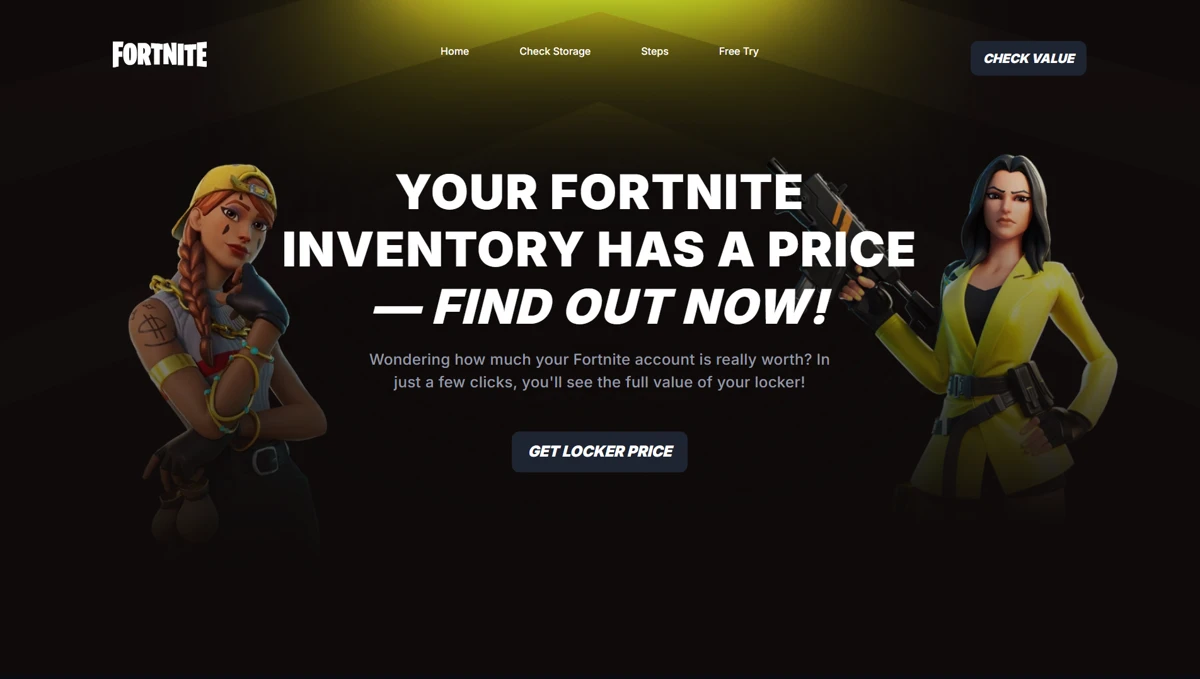
On a phone, a link preview may show only the page title. If you already visited the page, your browser history can tell you which host you opened without another visit. Save the hostname and the original message if you need to report the incident. Leave passwords, one-time codes and recovery links out of any screenshots you share.
Check which app has access to your Epic account
If you selected Allow on an Epic consent screen, open your account settings directly from Epic’s website and choose Linked accounts. When we followed Epic’s own Apps link on November 22, our account showed the platform tiles pictured below. This screen manages connections such as Xbox or Steam. It does not tell you whether a locker checker has app access.
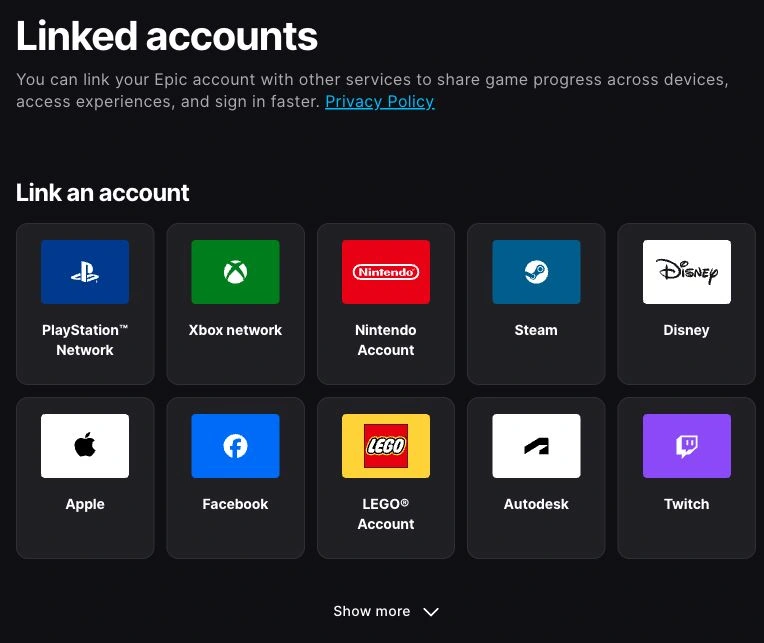
If you see an Apps tab, Epic’s support guide shows how to review a grant:
- Select Apps under Linked accounts. Find the product or service you approved. Its display name can differ from the website address.
- Expand the entry with the arrow. Read the permissions listed under the app’s name.
- Select Unlink for the app you want to remove, then check the list again.
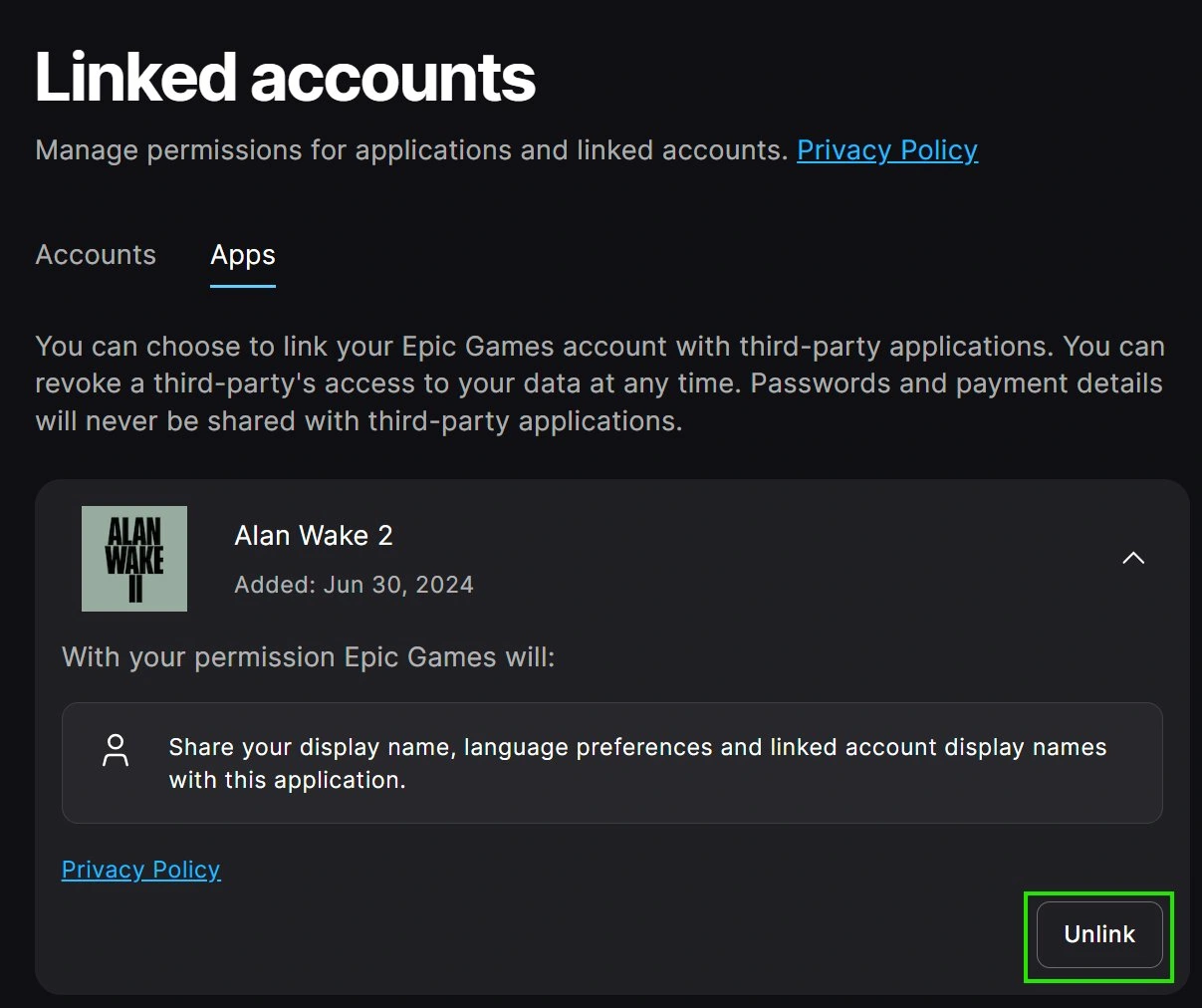
If you see only platform tiles, use the direct Apps link from Epic Support while signed in. If it still shows the same tiles and you remember approving an unfamiliar app, contact Epic Player Support with the app name and approximate date. Leave your console and sign-in connections in place. If you typed a password on a third-party page, follow the password steps below even if the app list is empty.
What did you do on the page?
- Opened it and closed it. If you entered nothing, approved nothing and downloaded nothing, close the tab and report the message. A page visit alone does not show that someone signed in to your account.
- Approved an app on Epic’s own site. Review and unlink it as described above. If the service also asked you to send a code in chat, treat any code you shared as a separate sign-in risk.
- Typed your password on the checker, shared a code, or are unsure where you signed in. Use a trusted device. Secure the email address attached to Epic, change your Epic password to a unique one and use Password and security → Sign out everywhere. Review two-factor authentication, linked apps and account details. Replace that password anywhere else you used it.
- Ran a downloaded “checker.” Use another device for account recovery. A Windows file introduces a separate risk to saved sessions. Follow the checks after running a suspicious game download before signing in again on that PC.
Ran a Fortnite locker checker on Windows?
A downloaded checker can leave a loader or startup entry on your PC after you delete the original file. Run a Full Scan and review any detections before using that PC to sign in again.
If the account email has already changed
Open Epic Games Support independently and start account recovery. Use an email inbox that you control. Epic’s recovery guide covers the case where the address on the account was changed without permission. If a person messages you offering to get your skins back for a fee or a new security code, keep that message for your report. Giving them another code can authorize another sign-in.
References
- PhishDestroy. Archived report for fnlocker.cc. First observed August 25, 2026. Accessed November 22, 2026.
- Epic Games Support. Disabling a product or service’s access to an Epic account. Accessed November 22, 2026.
- Epic Games Support. Recovery options for a compromised Epic account. Accessed November 22, 2026.