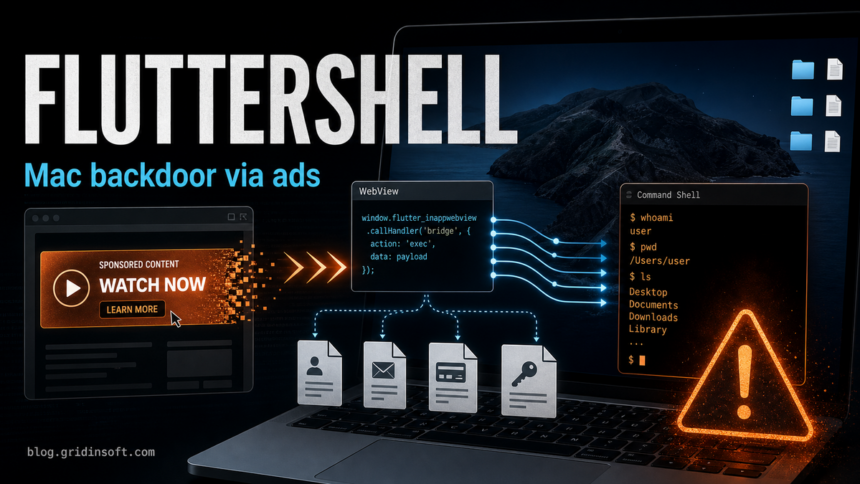
FlutterShell is a macOS backdoor reported in the Operation FlutterBridge malvertising campaign. If you installed a Mac app such as a podcast player or PDF tool from a sponsored result, YouTube ad, or unfamiliar download page, treat the Mac as potentially exposed until you check the app, Chrome settings, Login Items, LaunchAgents, configuration profiles, privacy permissions, and important account sessions.
The practical issue is not only an unwanted search redirect. Public analysis describes FlutterShell variants that used signed and notarized Mac apps, a hidden WebView bridge, command execution, file-system interaction, environment-variable collection, Chrome search hijacking, and a silent Sparkle-based update path. That combination makes a careful cleanup safer than simply dragging the app to Trash.
What is FlutterShell?
FlutterShell is a backdoor family observed in trojanized macOS applications connected to Operation FlutterBridge. The apps were built with Flutter, which can make them look like normal polished desktop tools while still loading attacker-controlled logic through embedded web content.
The reported variants include PodcastsLounge, PDF-Brain, and PDF-Ninja. Some versions appeared clean or unfinished, which matters for users: a file name alone is not enough to prove compromise, but a suspicious install source plus browser changes, new permissions, or persistence entries should be treated seriously.
Why this is more than a fake-app nuisance
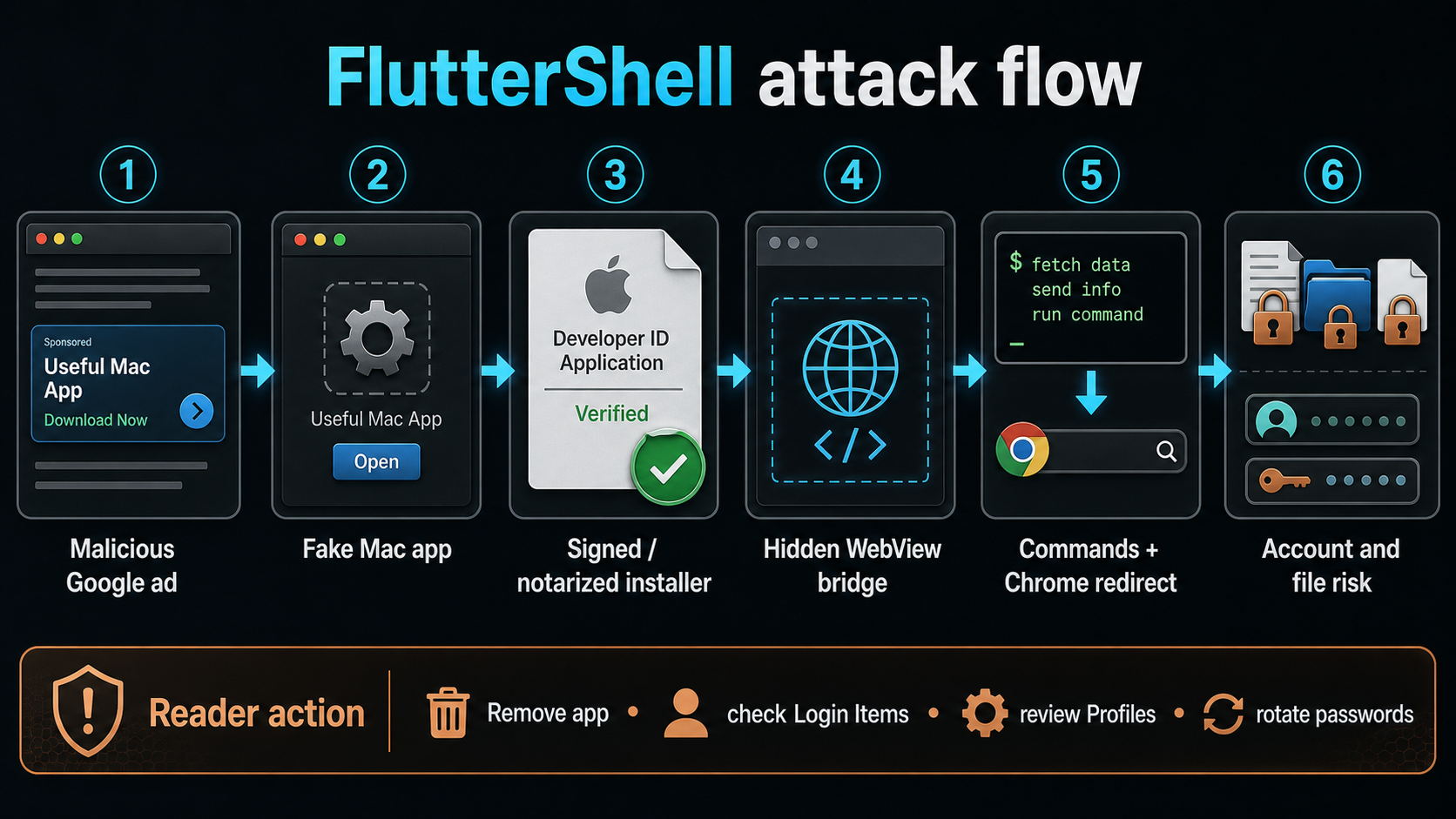
- Malvertising entry point: users can land on the download from ads that look legitimate, including search and video-platform ad flows.
- Signed or notarized appearance: a Mac security prompt looking normal does not prove the app is safe.
- WebView bridge: the app can receive JavaScript-driven instructions from attacker infrastructure instead of keeping every behavior hardcoded in the local binary.
- Backdoor capability: reported command sets include shell-command execution, file interaction, and environment-variable collection.
- Browser hijack behavior: observed samples modified Chrome’s Secure Preferences to route searches and new tabs through an attacker-controlled ad domain.
- Silent update risk: the Sparkle update framework was reportedly abused to stage and run updates without the normal user-facing update prompt.
Signs to check on your Mac
Start with the install timeline. If the Mac began redirecting searches, reopening Chrome unexpectedly, showing unfamiliar app windows, or asking for new privacy permissions after a recent podcast/PDF/utility download, check these areas first.
- Applications and Downloads: look for unfamiliar PDF, podcast, media, optimizer, converter, or AI-assisted utility apps installed around the suspicious date.
- Login Items: open System Settings → General → Login Items & Extensions and remove unknown items.
- LaunchAgents: review
~/Library/LaunchAgents/and/Library/LaunchAgents/for new plist files tied to the app name, publisher, or install time. - Profiles: on a personal Mac, remove configuration profiles or management entries you do not recognize.
- Privacy permissions: check Accessibility, Full Disk Access, Files and Folders, Screen Recording, Automation, and Input Monitoring for unexpected app access.
- Chrome settings: review the default search engine, new tab behavior, extensions, and managed browser state if Chrome was forced closed or reopened.
- Account sessions: check email, cloud storage, password manager, crypto wallet, developer, and work accounts for unknown sessions or connected apps.
FlutterShell cleanup steps
- Disconnect briefly if you see active suspicious behavior. If Chrome is being forced open, files are changing, or the app keeps relaunching, disconnect from the network while you collect the app name and install time.
- Quit and remove the suspicious app. Do not reopen it to test. Move it out of Applications only after noting the name, path, and date for later checks.
- Remove persistence around the same timestamp. Clean unknown Login Items and LaunchAgents connected to the app, its bundle identifier, or a suspicious publisher name.
- Review configuration profiles and privacy permissions. Unknown profiles or broad permissions are more important than the app icon itself because they can survive casual cleanup.
- Reset browser changes. In Chrome, restore the search engine and new tab settings, remove unfamiliar extensions, and check whether the browser says it is managed when it should not be.
- Scan the Mac and any copied files. Use your installed security tool and submit suspicious files for a second-opinion scan when possible. Gridinsoft users can also check downloaded files or related domains before reusing them on another device.
- Rotate passwords from a clean device. Prioritize email, Apple ID, cloud storage, banking, crypto, password managers, developer accounts, and work SSO if the app ran while you were signed in.
- Revoke sessions and tokens. Password changes do not always invalidate stolen cookies, OAuth tokens, app passwords, SSH keys, API keys, or browser sessions.
When a clean reinstall is safer
A manual cleanup can be reasonable when you only downloaded the app and did not run it. A clean reinstall becomes safer if the app executed, you handled sensitive documents, Chrome settings were changed automatically, unknown profiles or LaunchAgents appeared, or you cannot confidently map every new permission and persistence entry back to a harmless app.
For business Macs, involve the administrator or security team before wiping the device. They may need the app bundle, logs, LaunchAgent names, browser artifacts, and account-session data to determine whether other users or cloud accounts were affected.
How to avoid repeat infection
- Prefer direct vendor websites or the Mac App Store over sponsored download ads.
- Be skeptical of polished PDF, podcast, converter, or “AI helper” apps promoted through ads when the vendor name is unfamiliar.
- Do not treat a signed or notarized app as automatically safe; use it as one signal, not a verdict.
- Keep Chrome, macOS, and security tools updated so suspicious browser and persistence behavior is easier to detect.
- For work or developer accounts, keep API tokens and SSH keys outside normal browser-download workflows where possible.
FAQ
Is FlutterShell only adware?
No. Observed activity included browser hijacking, but FlutterShell is described as a backdoor because reported capabilities include command execution, file-system interaction, and environment-variable collection.
Can a notarized Mac app still be malicious?
Yes. Notarization and signing reduce some risks, but they do not replace source verification, behavior monitoring, and cleanup when an app comes from a suspicious ad or mirror.
Should I erase the Mac after FlutterShell?
Erase and reinstall if the app ran, sensitive accounts were open, persistence is unclear, or you cannot verify that browser settings, profiles, LaunchAgents, and permissions are clean.
Which fake app names are connected to FlutterShell reporting?
Public reporting names PodcastsLounge, PDF-Brain, and PDF-Ninja as observed FlutterShell-related variants. Treat similar ad-delivered Mac utilities cautiously, especially if they request broad permissions or alter Chrome.
References
- Palo Alto Networks Unit 42. “Operation FlutterBridge: macOS Malvertising Campaign Spreads New FlutterShell Backdoor.” Unit 42, published June 2, 2026; accessed June 11, 2026. https://unit42.paloaltonetworks.com/flutterbridge-new-fluttershell-backdoor/
- Apple. “Review and delete configuration profiles.” Apple Support, accessed June 11, 2026. https://support.apple.com/guide/personal-safety/review-and-delete-configuration-profiles-ips327569a75/web