

“Android has detected a wiretap on your phone” is a fake browser warning, not a finding from Android or Google. The version asking you to turn on the sound, listen for conversations, or run a test uses the fear of surveillance to keep you interacting with the page. Close the tab using your browser’s controls; do not press its test, repair, or download buttons.
Seeing this message does not establish that your phone is being monitored. What matters next is whether you only saw the page, allowed notifications, installed an app, or shared information. Those situations need different responses.
Why the sound test is a trap
The warning borrows Android’s name and claims that someone is recording through the microphone or camera. Its instructions make the page itself the supposed place to investigate the danger. That is the trick: the same untrusted page supplies both the accusation and the proposed test.
A website can present text and play audio. Hearing a sound from that page does not demonstrate that another person is listening to your phone. Nor would a reassuring result from its test establish that your device is safe. Do not stay on the page to see which outcome it produces.
The warning’s appearance can change, and we have not established one final download or payment destination for every version. Treat an app, subscription, login form, or payment request reached through this warning as untrusted; do not assume a particular malware family was installed just because the message appeared.
Choose the response that matches what you did
You only saw the warning
Close its tab. If it stops and you did not grant access or install anything, there is no reason to reset the phone solely because of this message.
You pressed the test button
Close any pages it opened. Check Downloads and recent installations. Continue with the appropriate branch below if you downloaded something, granted permission, or entered information.
You allowed site notifications
Block the sending website in your browser’s notification settings. Closing a tab alone does not withdraw that permission.
An APK downloaded, but you did not install it
Leave it unopened and delete the unwanted file from Downloads. Downloading an APK and installing an Android app are different events.
You installed an app or granted sensitive access
Review the app and its permissions, scan the phone, and remove unwanted items. Use a trusted device for sensitive accounts if the app could control your screen or read messages.
You entered a password or card details
Secure the affected account or contact your bank independently. Closing the page or removing an app cannot reverse information already submitted.
Close the page and stop repeat notifications
Open the browser’s tab switcher and close the warning tab. Use Android’s recent-apps screen to leave the browser if the page obstructs its controls, then close the unwanted tab when you return. Avoid repeatedly pressing Back through a chain of redirects, and do not restore the suspicious page.
If warnings arrive in the notification shade after the tab is closed, check which app and website sent them. A notification delivered by Chrome can contain a website’s words; the browser’s name does not make those words an Android security verdict.
- Open Chrome independently and go to Settings → Site settings → Notifications.
- Find the unfamiliar sending website and block its notifications. Review camera and microphone access too if you granted them to that site.
- Under Site settings → Pop-ups and redirects, keep pop-ups blocked.
Menu labels vary by browser and Android version. Google’s Chrome guidance covers pop-up and site-permission controls. Clearing cached files is not a substitute for checking notification permissions.
If the warning appears only when you revisit one website, avoid that site. If ads appear over unrelated apps or keep returning without that visit, investigate recent app installations instead of repeatedly clearing the browser.
If you installed the suggested app
An unfamiliar “security” app installed from the warning deserves attention even if its name sounds reassuring. Trojan Scanner by Gridinsoft can check installed apps and suspicious downloads and help you review what should be removed. Get it from the official Google Play listing, independently of the warning.
- Open Trojan Scanner and update its threat database.
- Tap Start and let the scan complete.
- Open the findings and review the app or file name and the reason for each warning.
- Remove unwanted items, confirm Android’s uninstall prompts, and scan again. Check whether the original unwanted behavior has stopped.
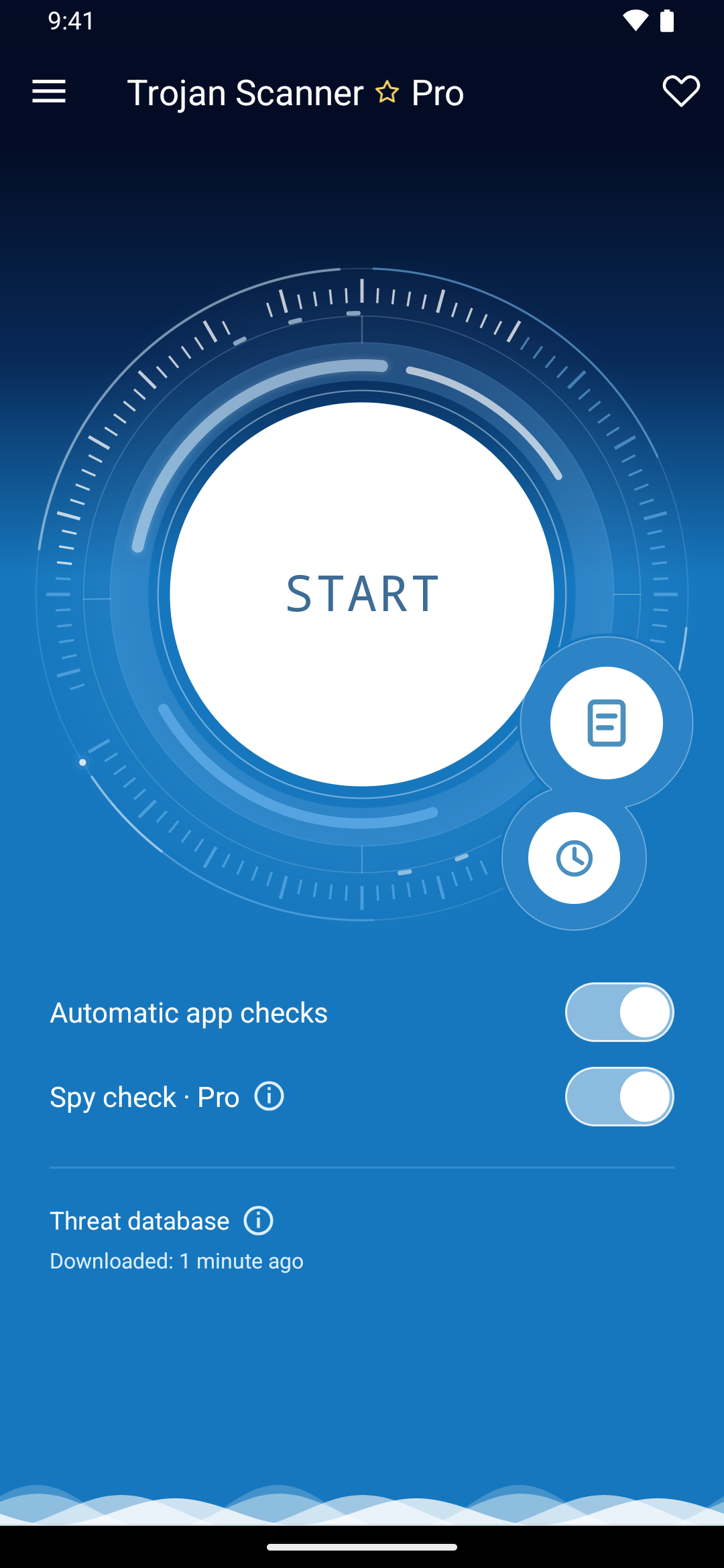
Also open Google Play yourself and review Play Protect; keep app scanning enabled. Check Android’s security updates and remove apps you do not trust through Settings. Google’s Android malware guidance explains these checks.
If the suspicious app refuses to uninstall, review the access you granted under Accessibility and Device admin apps. Revoke inappropriate access for that app and retry removal. Do not disable legitimate work-device management blindly. If pop-ups prevent you from using Settings, follow your phone manufacturer’s Safe Mode instructions or seek device-specific support.
Our Android malware scan and removal guide explains finding review and persistent-app recovery in more detail. A permission warning needs investigation; it does not by itself prove that conversations were recorded. A clean scan likewise cannot guarantee that information was never exposed.
If you shared account or payment information
Use a trusted device if you installed an app that could read messages or control the screen. Open the affected service through its known app or address, change the exposed password, and change it anywhere else you reused it. Review unfamiliar sessions, recovery details, and connected access. Our account recovery checklist covers those follow-up checks.
If you submitted card details or paid for the supposed repair, contact your bank through its official app or the number on your card. Explain what you submitted and ask about securing the card and disputing unauthorized charges. Keep the receipt or transaction details; do not pay a second “recovery” service promising to get the money back.
For this warning, the practical dividing line is your interaction with it: close a deceptive page, revoke a site permission, investigate an installed app, or recover an exposed account. A factory reset is a later troubleshooting option for unresolved device problems, not the default response to a frightening browser message.
References
- Google Chrome Help. Block or allow pop-ups in Chrome — Android. Google. Accessed November 18, 2026.
- Google Account Help. Remove malware or unsafe software — Android. Google. Accessed November 18, 2026.