Virus:Win32/Grenam.VA!MSR is a serious Microsoft Defender virus alert that should not be treated like a routine PUA warning. Grenam is known for file-infection behavior: it can replace or rename executable files, spread through removable/shared drives, and make normal programs look involved because their .exe files were touched. If you also see Ground.exe in Startup, Task Manager, or AppData, treat it as part of the same Grenam cleanup until clean scans prove otherwise.
Is Grenam.VA!MSR dangerous?
- Yes. Treat Virus:Win32/Grenam.VA!MSR as real malware first, not as a false positive.
- Do not restore infected EXE files from quarantine just because the program name looks familiar, and do not run recovered transparent/hidden EXE files yet.
- Disconnect USB drives and network shares if many Defender alerts appear at once.
- Run a full scan and a second check before reinstalling programs or moving files to another PC.
- If alerts return after cleanup, rebuild from clean installers, restore clean backups, or reinstall Windows.
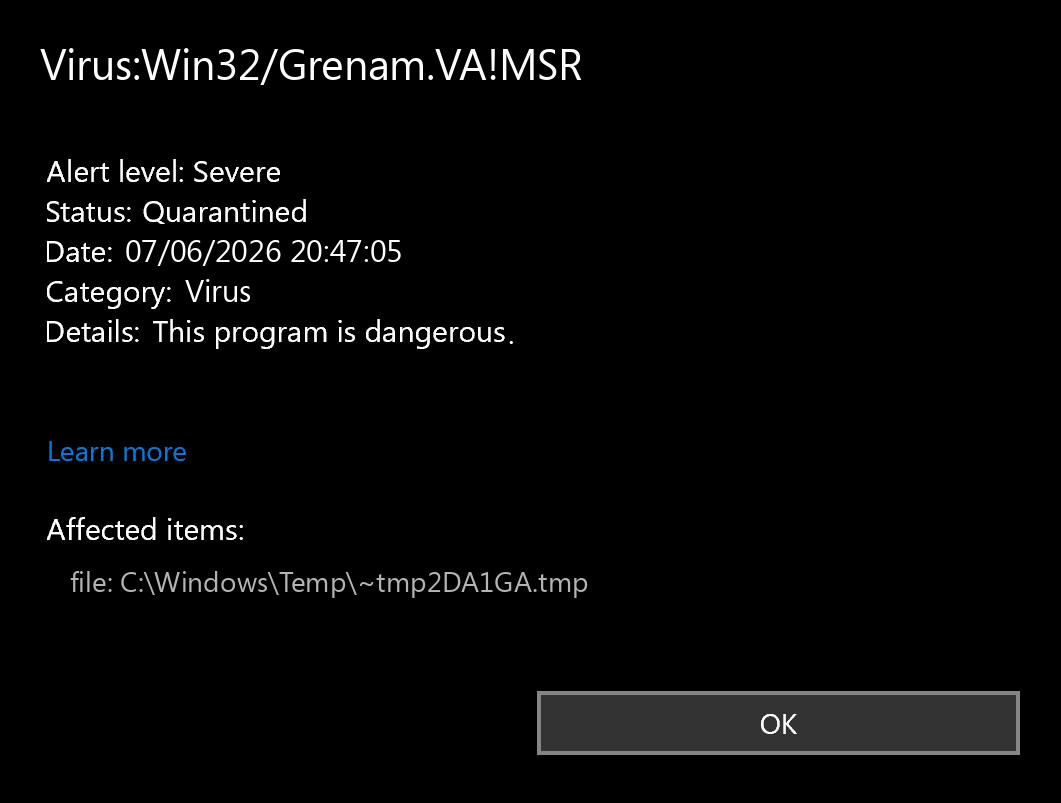
| Detection | Virus:Win32/Grenam.VA!MSR |
| Seen in | Microsoft Defender / Windows Security protection history |
| Main concern | Executable files may be infected, renamed, or replaced |
| Common symptom | Repeated alerts, Ground.exe startup entries, or normal EXE files turning hidden/transparent after cleanup |
| First response | Quarantine, isolate removable drives, update Defender, run full scans |
What is Virus:Win32/Grenam.VA!MSR?
Virus:Win32/Grenam.VA!MSR is a Microsoft Defender detection connected to the Grenam malware family. Microsoft describes Grenam as a mixed threat family with trojan, worm, and virus behavior. Some Grenam writeups and user reports also connect the family with a file named Ground.exe. The important part for a home user is the virus component: Grenam can interfere with executable files and make the infection appear across multiple normal-looking programs.
That is why people often think the alert is impossible: Defender may mention games, tools, old programs, or files copied from another laptop. In a Grenam case, the program name alone is not enough to prove the file is safe. Check the file path, the source of the installer, the digital signature, and whether multiple .exe files suddenly started triggering at the same time.
Is it a false positive?
A false positive is possible with any antivirus engine, but Grenam.VA!MSR should be handled as real until you have evidence. Microsoft community guidance for this exact detection warns that repeated Grenam entries are likely not false positives, especially when Defender keeps adding new items to protection history.
Use this quick split:
- More likely real infection: many alerts, random Temp/AppData paths, a
Ground.exestartup item, files from another PC, old USB drives, cracked software, unknown archives, or Defender detections that return after reboot. - Needs verification: one alert in a signed vendor installer downloaded from the official site, no repeated detections, and a clean second-opinion scan.
- Do not restore yet: any executable that Defender quarantined as Grenam before a full cleanup is complete.
Why does Defender show many infected EXE files?
Grenam is not just a single suspicious app. The family is associated with behavior where executable files can be renamed, replaced, hidden, or used as cover for the malicious file. That means several apps can become part of the same incident even if the original program was legitimate.
This is also why deleting only the Windows Security detection history is the wrong fix. It may hide the notification trail, but it does not clean infected files, startup entries, removable drives, or copied executables.
How to remove Grenam safely
- Stop moving files. Do not copy executables from the affected PC to another computer. Disconnect USB drives and shared drives until you know they are clean.
- Let Defender quarantine the detections. Do not restore files from protection history just because the program name looks familiar.
- Check Startup apps and Task Manager for
Ground.exe. If it is present, disable the startup entry before running more programs, then scan the file path instead of launching it. - Update Microsoft Defender. Then run a full scan, not only a quick scan.
- Run Microsoft Safety Scanner as a second check. Download a fresh copy from Microsoft, because it uses current definitions only for a limited time.
- Scan removable drives separately. If a USB drive was attached, scan it before opening or copying files from it.
- Replace affected programs from clean installers. Download installers from the official vendor site instead of reusing old
.exefiles from the infected machine. If original executables are visible only after enabling protected operating-system files, keep them quarantined from normal use until full scans are clean. - Use Gridinsoft Anti-Malware for a second opinion if alerts continue. Review detected paths before removal, especially when the same family appears across several folders.
- Change passwords from a clean device if the infected PC had browser sessions, saved passwords, crypto wallets, or work accounts.
After uninstalling the suspicious app or deleting the visible threat, use Gridinsoft Anti-Malware to check hidden files, startup entries, scheduled tasks, bundled apps, browser changes, and other persistence points that can restore malware.
Download Anti-MalwareWhen is reinstalling Windows safer?
Reinstalling is not always required, but it becomes the safer route when Defender keeps detecting Grenam after full scans, many executable files are affected, system tools are broken, or the infection came from an old shared drive with unknown history. A file-infecting virus can leave you with a messy question: even if the active malware is removed, which programs can still be trusted?
Before reinstalling, preserve personal documents, photos, and project files, but avoid backing up .exe, .scr, .bat, .cmd, .msi, or unknown archives from the infected system. After reinstalling, patch Windows first, install security updates, then reinstall apps from clean official sources.
Check USB and shared drives
Grenam-family behavior includes removable-drive spreading. If the alert appeared after copying files from an old laptop, repair shop, school/work machine, or friend’s USB stick, treat that drive as suspicious. Scan it before opening folders, and do not run portable apps from it until the scan is clean.
What not to do
- Do not restore quarantined Grenam files just to make a program work again.
- Do not turn off Defender to install or launch the affected program.
- Do not trust a file only because it has a familiar icon or name; transparent/hidden EXE icons need verification before use.
- Do not fix the problem by deleting only protection history or notification logs.
- Do not move old executable collections to a clean PC before scanning them.
FAQ
Is Virus:Win32/Grenam.VA!MSR always malware?
Treat it as malware first. A false positive is possible, but repeated Defender alerts, many affected .exe files, or detections from USB/shared folders are strong reasons to clean the system before restoring anything.
Is Ground.exe the same as Grenam?
Ground.exe is a common filename seen in Grenam-related incidents, especially around Startup/AppData paths. Treat it as suspicious when it appears together with Virus:Win32/Grenam.VA!MSR alerts, repeated infected EXE detections, or removable-drive spread.
Why did my EXE icons turn transparent after cleanup?
Transparent executable icons can appear when the original program files were hidden or marked with protected/system attributes while malicious replacement EXEs were removed. Do not simply unhide and run them. Finish full scans first, then reinstall important apps from clean official installers if you cannot verify the recovered EXE files.
Can I keep infected EXE files?
No. Replace affected programs from clean official installers. If an executable was quarantined as Grenam, restoring it can restart the same problem or move the infection to another device.
Why does the alert keep coming back?
The source may still be present: an infected executable, startup entry, removable drive, shared folder, or restored file. Run full scans, check USB drives, and rebuild affected programs from clean installers.
Do I need to reinstall Windows?
Not for one isolated alert that cleans successfully. Consider reinstalling when many executables are affected, Defender keeps detecting Grenam after full scans, or you cannot tell which programs are still trustworthy.
References
- Microsoft Security Intelligence, Win32/Grenam threat description, updated September 15, 2017, accessed June 7, 2026.
- Trend Micro, Virus.Win32.GRENAM.B threat encyclopedia entry, November 17, 2020, accessed June 11, 2026.
- Microsoft Learn, Microsoft Safety Scanner Download, accessed June 7, 2026.