Trojan:Win32/Sabsik.EN.B!ml is a Microsoft Defender detection for a Windows Trojan. If it appears on your PC, keep the affected file quarantined, check whether Defender completed its action, and run a full system scan. If the program already ran, cleanup also needs to account for anything it installed or changed. A warning that remains in Protection history needs a different response from a new detection recorded after a restart.
The useful evidence is the exact file, its source, the detection time and the action status. Those details tell you whether you are dealing with a blocked download, an unresolved threat, another copy of the same file, or a possible false positive.
What Trojan:Win32/Sabsik.EN.B!ml means
Microsoft lists this exact detection in its threat encyclopedia and says Defender detects and removes it. The public record does not provide technical details for EN.B!ml. It therefore does not identify one universal filename, a particular startup task, or a confirmed list of stolen information for every file bearing the label.[1]
Microsoft’s naming scheme separates the threat type, platform, family and variant. Here, Trojan is the threat type, Win32 is the platform label and Sabsik is the family name. The remaining suffix is part of the detection identifier; it does not tell you whether your particular download is safe.[2]
This differs from Trojan:Script/Sabsik.FL.A!ml, which uses the Script platform label. Keep the complete name when comparing reports. A script investigation or a false-positive resolution for a different Sabsik variant cannot establish what your EN.B!ml file does.
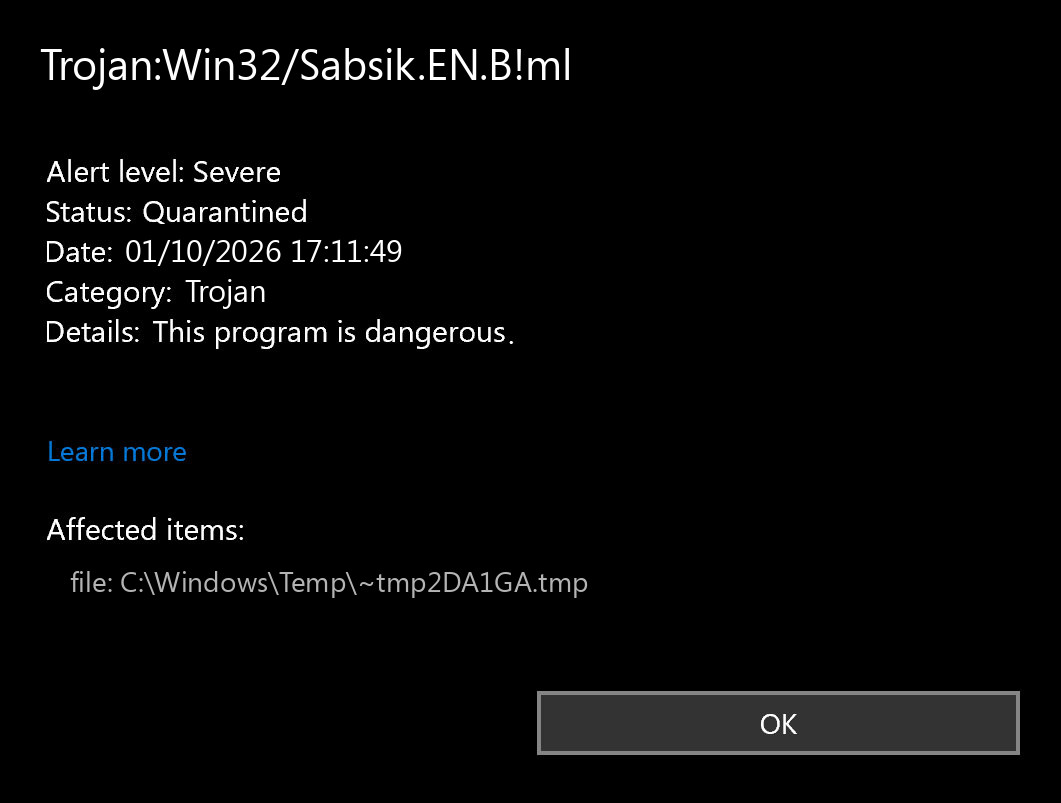
The alert illustration shows the exact label and a quarantined status. Its temporary-file path is illustrative: use the affected item shown on your own computer rather than searching for that example filename.
Check whether Defender finished handling the file
Open Windows Security → Virus & threat protection → Protection history and expand the matching Sabsik entry. Note the affected item, event time and status before changing anything. You may need administrator permission to view the details.
| What the card says | What to do next |
|---|---|
| Threat found — action needed | Finish the pending action. Choose quarantine or removal; do not allow an unfamiliar file. |
| Threat quarantined | Keep it isolated. Do not restore it just to retry the installer. |
| Threat blocked | Defender reports that it blocked and removed the threat. Check the download source and whether you ran an earlier copy. |
| Remediation incomplete | Expand the card for the unfinished action, then proceed with a full system scan and investigate any remaining alert. |
These are action states in Microsoft’s Protection History guidance.[3] They are more useful for deciding your next step than the age or severity of an old notification.
If the item came from an installer, archive or extracted download you do not trust, remove the source package after quarantine. Avoid opening it again to see whether the warning repeats. If you allowed the threat earlier, review Allowed threats and revoke that allowance; also check for exclusions you added while following installation instructions.
Remove Sabsik with Gridinsoft Anti-Malware
Use Gridinsoft Anti-Malware for a full cleanup scan after isolating the detected file. This is especially useful if the program ran, Defender could not finish remediation, or a fresh alert appears after reboot. Quarantining the visible executable may leave a companion file or another component behind; a system scan checks beyond the one item named in the alert.
After uninstalling the suspicious app or deleting the visible threat, use Gridinsoft Anti-Malware to check hidden files, startup entries, scheduled tasks, bundled apps, browser changes, and other persistence points that can restore malware.
Download Anti-Malware- Download and install Gridinsoft Anti-Malware using the download button above. Keep the Sabsik file quarantined while you do this.
- Update the malware database before starting the scan.
- Run a Full Scan. Include relevant connected storage if the suspect package came from it.
- Review the detected items and apply cleanup to the threats identified. Keep the scan report so you can compare paths if another alert appears.
- Restart Windows and check the original symptom. If Defender records a fresh Sabsik event, compare its time and affected path with the earlier one and scan again after removing the identified source.
You do not need to search through registry keys and scheduled tasks manually before choosing this cleanup route. If the installer or scanner cannot run, use Safe Mode or offline recovery as a fallback, then return to the Gridinsoft scan when access is restored. On a work-managed PC, involve the administrator before changing security settings.
Why Sabsik keeps coming back after quarantine
First check whether it really is a new detection. A card left in Protection history is a record of an event. Look for a later detection time, a new affected item, or an action that remains incomplete.
Consider an illustrative example: Defender first detects a file inside Downloads\setup.zip. After extraction, it detects another copy under Downloads\setup\. The same Sabsik label appears twice, but this alone does not show that malware survived quarantine or launched at startup. The original archive and the extracted copy are separate places to check.
- Only the old event remains: confirm the completed status and review the scan results. Clearing history is not a cleanup procedure.
- A fresh alert follows another download or extraction: stop recreating the file and remove the untrusted source package.
- A fresh file appears after reboot without another download: inspect the scan report for a companion app or persistence component. If scanning does not resolve it, targeted checks of startup apps, task actions and recently installed software can help identify what creates the file.
Paths under AppData, Temp or a Startup folder deserve context, but the folder alone does not identify malware. Do not delete an entire Windows or user-profile directory, or remove a legitimate Windows executable because a forum mentions its name.
Could Trojan:Win32/Sabsik.EN.B!ml be a false positive?
Yes, a detection can be mistaken. The question is whether this exact file and build has been verified, not whether someone else successfully used software with a similar name.
Check the original vendor source, any published checksum and the digital signature when one is expected. A valid signature helps establish who signed a file; it does not replace an investigation. A clean result from one scanner also does not automatically overrule a detection from another.
For a legitimate application, check an available copy of the exact build with Gridinsoft Online Virus Scanner and ask its publisher to investigate the flagged file. Keep the detected file quarantined during the investigation; do not restore it just to upload it for checking. For a crack, repack, activator or unknown attachment, choose a trusted replacement rather than disabling protection or excluding the whole download folder.
If the detected program already ran
Stop using the affected PC for sensitive sign-ins while you assess the incident. If the program is untrusted or suspicious activity is continuing, disconnect its network connection. Obtain the cleanup installer from a separate trusted device if necessary.
From a clean device, review important accounts for unfamiliar sessions and activity. If credentials or browser sessions may have been exposed, revoke suspicious sessions, change affected passwords and check recovery details. Enable multifactor authentication where available. Removing local malware cannot revoke a session an attacker already obtained.
A Windows reinstall is not automatically required for a download blocked before it ran. Consider a clean reinstall or professional incident response when remediation repeatedly fails, unauthorized changes persist, or you cannot regain confidence in the system. Preserve personal documents and scan them before restoring them; leave suspect executables and installers out of the backup.
References
- Microsoft Security Intelligence. Trojan:Win32/Sabsik.EN.B!ml threat description. Published January 21, 2022; accessed October 1, 2026.
- Microsoft Learn. How Microsoft names malware. Accessed October 1, 2026.
- Microsoft Support. Protection History in the Windows Security App. Accessed October 1, 2026.