Trojan:Win32/JScealTaskExec is a Microsoft Defender detection for a Windows trojan that may run commands, add persistence, or try to weaken Defender protection. Treat it as real unless you can prove the detected file is a known, signed, trusted tool. If the alert comes back after you click Remove or Quarantine, look for a scheduled task, PowerShell command, Defender exclusion, or another startup entry that is recreating it.
What should you do first?
- Leave the item quarantined and save the Defender detection path/details.
- Update Microsoft Defender, then run a Full scan and Microsoft Defender Offline scan.
- Check Task Scheduler, Startup apps, Defender exclusions, PowerShell activity, and suspicious files in Temp, AppData, Downloads, and ProgramData.
- If Defender shows
Trojan:Win32/JScealTaskExec.AA,.AB, or.ACagain and again, assume something is restoring it. - Change passwords from a clean device if the infected PC was used for email, banking, crypto, work, or browser-saved logins.
Important spelling note: people often search for Trojan:Win32/JScealTaskExe, but the official Microsoft detection name is usually Trojan:Win32/JScealTaskExec with Exec at the end. This guide covers both spellings and the common variants JScealTaskExec.A, JScealTaskExec.AA, JScealTaskExec.AB, and JScealTaskExec.AC.
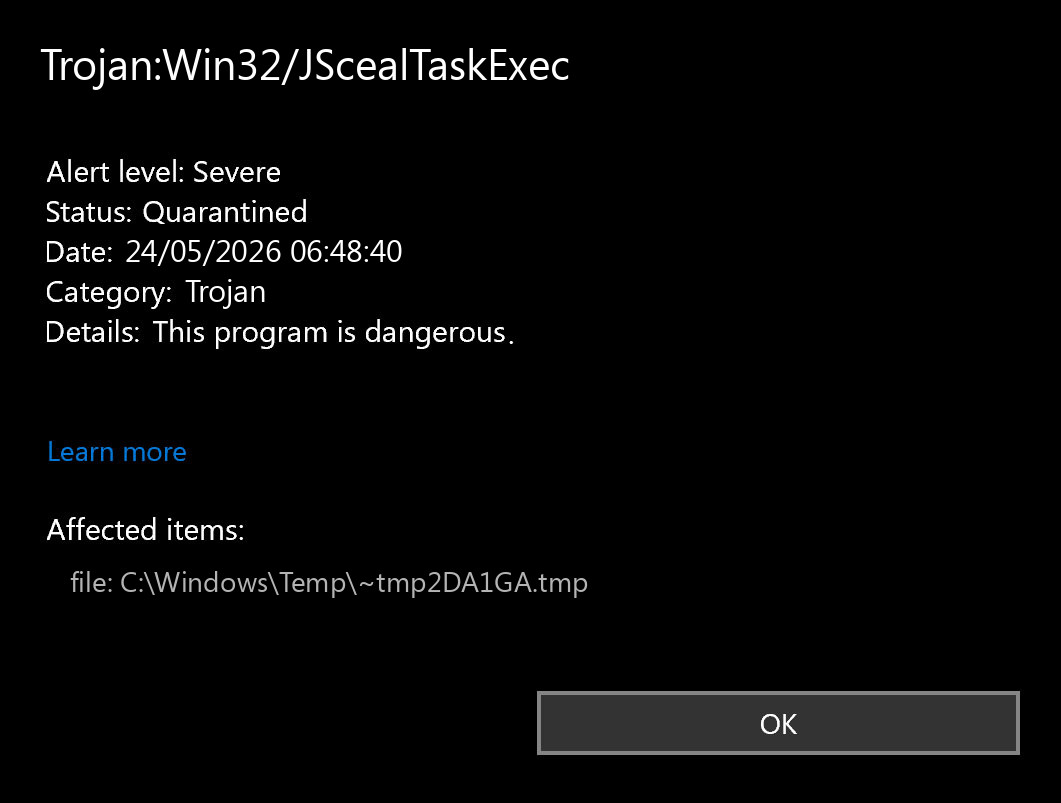
| Detection name | Trojan:Win32/JScealTaskExec |
| Detected by | Microsoft Defender Antivirus |
| Common variants | JScealTaskExec.A, JScealTaskExec.AA, JScealTaskExec.AB, JScealTaskExec.AC |
| Risk level | High if found in PowerShell, Temp, AppData, scheduled tasks, or Defender exclusions |
| Best first action | Quarantine, run Defender Offline, then check persistence points before restoring anything |
Defender detection context: This guide is part of our Microsoft Defender detection reference. A detection name alone is not enough to decide whether a file is safe. Check the file path, source, digital signature, Defender action status, and whether the alert returns after reboot.
What is Trojan:Win32/JScealTaskExec?
Microsoft lists Trojan:Win32/JScealTaskExec.A in its Security Intelligence entry as a Microsoft Defender Antivirus detection. Microsoft says the threat can perform actions chosen by a malicious actor and that technical details are limited at the moment. That means the safest practical approach is not to guess the family payload, but to remove the active item and inspect the persistence points around it.
The name itself gives a useful clue. TaskExec strongly points users toward execution and task-based persistence. Public user reports around this detection also mention repeated Defender alerts, PowerShell commands, Defender exclusion changes, and suspicious scheduled tasks. Those reports do not prove that every case is identical, but they match a common pattern: Defender removes one part, while another startup mechanism brings it back.
Why JScealTaskExec keeps coming back
If the alert returns every few minutes or after reboot, do not keep pressing Remove forever. Repeat alerts usually mean one of these is still present:
- Scheduled task: a task launches PowerShell,
schtasks.exe, a script, or an installer-like executable. - Defender exclusion: malware tries to add an exclusion so its folder or process is skipped later.
- Startup entry: an unknown app starts from
AppData,Temp,ProgramData, or a random folder. - Browser/download source: a malicious download, extension, or sync folder keeps restoring the same file.
- Secondary payload: the first file was only a downloader or launcher, not the whole infection.
One public Microsoft Q&A case showed a Defender detail line with PowerShell running -NoProfile -EncodedCommand. Decoding the command revealed an attempt to run Add-MpPreference -ExclusionPath (Get-Location) -Force. Another public report showed Add-MpPreference -ExclusionProcess. In plain English, that is a red flag: the process is trying to add Defender exclusions.
If the alert name is Trojan:Win32/PowExcScr.HB!MTB and the affected item points to Add-MpPreference -ExclusionPath with a Startup .scr path, use the dedicated PowExcScr.HB!MTB removal guide for that exact Defender detection.
| Defender detail | Why it matters |
powershell.exe -NoProfile -EncodedCommand |
Encoded PowerShell is commonly used to hide commands from casual inspection. |
Add-MpPreference -ExclusionPath |
Attempts to exclude a folder from Defender scans. |
Add-MpPreference -ExclusionProcess |
Attempts to exclude a process from Defender scans. |
C:\Windows\System32\Tasks... |
May indicate scheduled-task persistence. |
Temp, AppData, ProgramData |
Common places for droppers, scripts, and user-level persistence. |
Is Trojan:Win32/JScealTaskExec a false positive?
A false positive is possible with any antivirus detection, but for this specific name you should be cautious. A false positive is more plausible if the file is a signed, known, vendor-provided executable from an official source and Defender does not show suspicious PowerShell, scheduled task, or exclusion behavior. A real infection is more plausible if the item came from cracked software, game cheats, fake installers, browser downloads, archives, unknown scripts, or if the detection keeps returning.
Do not restore the file if:
- It came from a torrent, crack, keygen, mod menu, fake update, or unknown archive.
- Defender details mention PowerShell, encoded commands, exclusions, or scheduled tasks.
- The file is unsigned, randomly named, or located in Temp/AppData.
- The alert returns after reboot.
How to check the file safely
- Open Windows Security. Go to Virus & threat protection – Protection history.
- Open the JScealTaskExec detection. Note the affected item path, process, and action status.
- Do not restore yet. If the file is quarantined, leave it there while you investigate.
- Check the source. Ask: did this come from an official vendor, or from a download portal, archive, crack, script, or installer bundle?
- Check signature. Right-click the original file if it still exists – Properties – Digital Signatures. No signature or a strange publisher is a warning sign.
- Scan the system, not only the file. A one-file scan can miss the scheduled task or script that restores the threat.
If you upload a file to an online multi-scanner, do not upload private documents, company files, passwords, browser profiles, or anything containing personal data. For public executables, a hash or file scan can help, but it does not replace checking persistence on the PC.
How to remove Trojan:Win32/JScealTaskExec
1. Update Defender and run a Full scan
Open Windows Security – Virus & threat protection – Protection updates, then check for updates. After that, run Scan options – Full scan. Let Defender quarantine or remove what it finds.
2. Run Microsoft Defender Offline
If the alert returns, run an offline scan. Open Windows Security – Virus & threat protection – Scan options – Microsoft Defender Offline scan. The PC will restart and scan before normal Windows loads, which helps when malware is active during a normal session.
3. Run Microsoft Safety Scanner or MSRT
For another Microsoft check, run Microsoft Safety Scanner from Microsoft or use the built-in Malicious Software Removal Tool with mrt.exe. Choose a full scan when possible. This is useful when Defender reports partial removal or when the threat keeps reappearing.
4. Remove suspicious Defender exclusions
Go to Windows Security – Virus & threat protection – Manage settings – Exclusions. Remove exclusions you did not create intentionally. Be especially suspicious of exclusions for powershell.exe, a whole user profile, Downloads, Temp, AppData, or the folder where the detection appeared.
5. Check Task Scheduler
Open Task Scheduler and inspect recently created or strange tasks. Look for tasks that launch PowerShell, cmd.exe, wscript.exe, mshta.exe, schtasks.exe, scripts, or executables from user-writable folders.
Common suspicious patterns include random task names, fake update names, installer-like names, and tasks that run from:
C:\Users\{you}\AppData\Roaming
C:\Users\{you}\AppData\Local\Temp
C:\ProgramData
C:\Windows\System32\Tasks
6. Check startup entries and recently installed apps
Open Settings – Apps – Installed apps and sort by install date. Remove unknown apps installed around the time the alert started. Then open Task Manager – Startup apps and disable unfamiliar entries. If you are comfortable with advanced checks, review the Run keys in the registry, but do not delete entries you cannot identify.
7. Clean browsers and downloads
Remove suspicious extensions, revoke unwanted notification permissions, and clear downloads that match the infection time. If the threat started after a browser download, delete the source archive or installer too. If browser sync restores the same file or extension, pause sync while cleaning.
8. Run a second opinion scan
After Defender cleanup, run a second full system scan. Gridinsoft Anti-Malware can help check leftover startup entries, bundled apps, hidden files, and browser-level changes that a one-file removal may miss.
After uninstalling the suspicious app or deleting the visible threat, use Gridinsoft Anti-Malware to check hidden files, startup entries, scheduled tasks, bundled apps, browser changes, and other persistence points that can restore malware.
Download Anti-MalwareWhat if the internet stops working?
Some users report broken internet, proxy changes, or repeated Defender pop-ups. If internet access is unstable, check these places:
- Settings – Network & internet – Proxy. Turn off unknown manual proxy settings.
- Browser proxy or extension settings.
- DNS settings on the adapter and router.
- Recently added VPN, proxy, browser, or security-looking apps.
If the PC cannot safely download tools, use another clean computer to download installers from official sites, copy them with a USB drive, and scan the USB before moving personal files back.
Account safety after JScealTaskExec
Because trojans can be used to deploy stealers or backdoors, cleanup should include account protection:
- Change passwords from a clean phone or computer, not from the infected PC.
- Start with email, Microsoft, Google, banking, crypto, gaming, and work accounts.
- Sign out of other sessions where the service allows it.
- Enable MFA and remove unknown recovery emails, phone numbers, or authenticator devices.
- Watch bank and payment accounts for unusual activity.
Related behavior detection: If Defender reports script-style persistence, compare it with Behavior:Win32/Interhta.Int and check Task Scheduler, Startup Apps, browser extensions, and mshta/script activity.
FAQ
Is Trojan:Win32/JScealTaskExec dangerous?
Yes, treat it as dangerous unless you can prove the detected item is a trusted false positive. Repeat detections, PowerShell commands, Defender exclusions, or scheduled tasks are strong warning signs.
Why does JScealTaskExec keep returning after removal?
Usually because another component is restoring it. Check Task Scheduler, Defender exclusions, Startup apps, Run registry keys, browser downloads, and files in Temp/AppData/ProgramData.
What is the difference between JScealTaskExe and JScealTaskExec?
JScealTaskExec is the spelling used in Microsoft Defender detections. JScealTaskExe is a common search typo. Both searches usually refer to the same Defender alert family.
Can Gridinsoft Anti-Malware remove it?
Yes. Run Gridinsoft Anti-Malware, remove detected threats, reboot Windows, and scan again to confirm the detection and related startup entries are gone. If the alert was tied to a downloaded script or installer, delete the original source file as well.
Can I allow it in Defender?
No. Do not allow or exclude it unless Microsoft or the software vendor confirms a false positive for a specific signed file you intentionally installed.
What should I send to support?
Send the Defender detection name, affected item path, action status, time of detection, whether it returns after reboot, and screenshots of suspicious scheduled tasks or exclusions. Do not send passwords or private files.