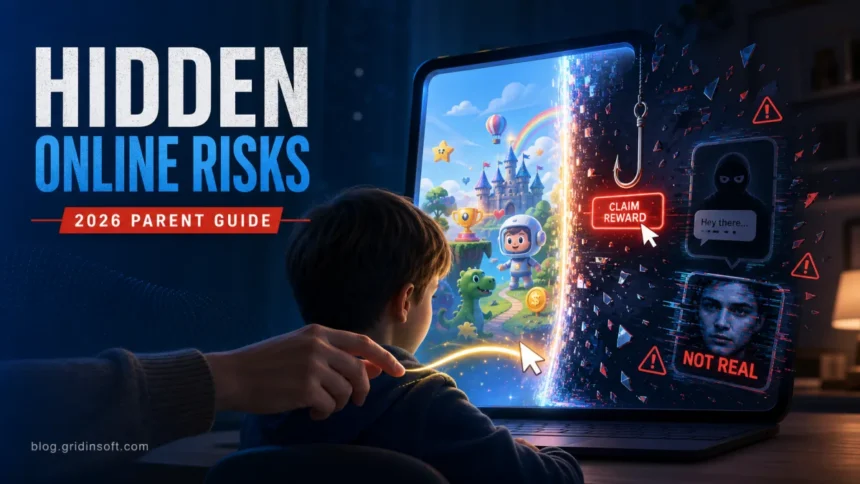
Keeping kids safe online in 2026 means combining trust, settings, and a clear emergency plan. Parental controls can reduce exposure to adult content, stranger messages, purchases, and late-night scrolling, but they cannot replace regular conversations. The practical goal is simple: know which apps your child uses, lock down privacy and payments, teach scam signals, and make sure your child knows they can come to you before a small online mistake turns into blackmail, malware, or account theft.
This guide was refreshed because the old internet-safety advice is no longer enough. Kids now move between school devices, YouTube, games, group chats, AI tools, short-video feeds, and private messages. A safer setup has to cover scams, fake rewards, phishing links, location sharing, account recovery, downloads, and the uncomfortable moments when a child has already clicked, replied, or shared too much.
Quick online safety plan for parents
| Layer | What to do first |
|---|---|
| Trust and rules | Agree on which apps, games, chats, and devices are allowed, and make it clear that asking for help will not automatically mean punishment. |
| Privacy | Turn off public profiles, location sharing, contact discovery, and friend requests from unknown people where possible. |
| Purchases | Require approval for app installs, in-game purchases, subscriptions, gift cards, and marketplace trades. |
| Scams and malware | Teach your child to stop before clicking free rewards, mod downloads, fake giveaways, verification links, or files from strangers. |
| Emergency response | Have a calm plan for phishing, sextortion, cyberbullying, hacked accounts, or suspicious downloads. |
Why online safety for kids changed
Children are not just browsing websites anymore. They are watching videos, using school portals, joining voice chats, trading game items, scanning QR codes, talking to AI chatbots, and receiving links in private messages. Pew Research Center’s 2024 teen survey found that 96% of U.S. teens go online daily and nearly half say they are online almost constantly. YouTube remains the most-used platform among teens, while TikTok, Instagram, and Snapchat are also widely used.
That does not mean every online moment is dangerous. It means parents need a broader safety model. The risk is rarely one website. It is the path from a video to a Discord invite, from a game chat to a “free Robux” page, from a fake support message to a password reset, or from a private photo to blackmail. Good internet safety follows those paths instead of only blocking broad categories.
Start with a conversation, not surveillance
A child is more likely to ask for help if online safety is treated as a shared routine, not a trap. Explain that your job is to help them avoid people and sites that manipulate children, not to embarrass them for being curious. Ask simple recurring questions:
- Which apps or games are you using most this week?
- Did anyone you do not know ask to move a chat somewhere private?
- Did anyone offer free coins, skins, Robux, V-Bucks, gift cards, or followers?
- Did a link, download, or pop-up make you uncomfortable?
- Is there anything online you are worried I will be angry about?
Do not promise there will never be consequences. Do promise that safety comes first. If a child believes they will lose every device forever, they may hide the exact problem you need to see early.
Lock down privacy and contact settings
Review every app, game, console, and school device your child uses. Start with profile visibility, direct messages, friend requests, location sharing, public comments, ad personalization, and purchase approval. The Federal Trade Commission notes that parental controls can help manage screen time, restrict content, view activity, limit who a child communicates with, and restrict purchases. Use those controls as a seatbelt, not as the whole car.
- Make child and teen accounts private by default.
- Disable contact discovery by phone number or email where possible.
- Turn off precise location sharing unless there is a clear family reason to use it.
- Require parent approval for purchases, downloads, and subscriptions.
- Check whether strangers can send voice chat, image messages, links, or friend requests.
- Review connected accounts such as Google, Apple, Microsoft, Discord, Roblox, Steam, and school logins.
For younger children, make the device setup boring on purpose: fewer apps, no public profile, no payment method saved inside games, and no browser without filtering. For teens, explain the tradeoff: more independence comes with stronger account security and honest reporting when something goes wrong.
Teach scam signals kids actually see
Children are often targeted through things they want: free game currency, rare skins, followers, creator codes, cheats, mods, beta invites, scholarships, concert tickets, shopping discounts, or “verification” badges. These scams can lead to phishing, malware downloads, stolen accounts, payment fraud, or blackmail.
Teach your child to pause when a message or page has one of these signals:
- It promises free Robux, V-Bucks, coins, skins, premium items, or gift cards.
- It asks them to log in again through a link sent in chat.
- It asks for a verification code, recovery code, password, seed phrase, or parent card details.
- It says they must act now or their account will be banned.
- It asks them to download a mod, APK, executor, cheat, screen-sharing tool, or “support” app.
- It asks them to keep the conversation secret from parents.
Gridinsoft already covers several common child-and-teen scam lanes in more detail, including Roblox Robux generator scams, Fortnite V-Bucks generator scams, TikTok scams, and phishing warning signs.
Handle game mods, cheats, and downloads carefully
Free games, mods, shader packs, cracks, cheats, and “boosters” are a common malware route. A child may not think of a game mod as software, but Windows does. If a download asks to disable antivirus, run as administrator, install a browser extension, paste a command into PowerShell, or complete a survey before unlocking a file, stop.
Use a simple family rule: no executable files, APKs, browser extensions, Discord attachments, compressed archives, or “mod menus” without an adult check. If a file has already been downloaded, do not open it again. Scan the file or URL first with the Gridinsoft Online Virus Scanner, then remove suspicious downloads, browser extensions, and recently installed apps.
Know the difference between drama and danger
Online conflict between kids can be messy, but some signs need fast adult involvement: threats, doxxing, impersonation, sexual pressure, repeated harassment, account takeovers, image-based abuse, self-harm encouragement, or demands for money. Save evidence before blocking when it is safe to do so: screenshots, usernames, profile URLs, timestamps, and message links.
If the problem is bullying or harassment, use the platform’s reporting tools and read our separate guide to cyberbullying. If the problem involves sexual exploitation, threats over explicit images, or an adult trying to move a child into private sexual conversation, treat it as a safety emergency, not normal online drama.
What if a child is threatened or blackmailed online?
Stay calm first. The child may already be terrified. Do not pay, do not negotiate, and do not send more images. Preserve evidence, block or report the account through the platform, and get help from trusted authorities. NCMEC’s CyberTipline is the centralized U.S. reporting system for suspected online exploitation of children; its 2025 report says online enticement reports reached 1.4 million and included more than 80,000 sextortion reports.
- Tell the child they are not in trouble for asking for help.
- Do not delete the conversation until screenshots and usernames are saved.
- Report the account on the platform.
- Use NCMEC’s CyberTipline for suspected child sexual exploitation.
- If there is immediate danger, call emergency services or local law enforcement.
- If an image may spread, use NCMEC’s Take It Down service where appropriate.
What to do if your child clicked a suspicious link
Clicking a link does not always mean a device is infected. The risk depends on what happened next: did the child enter a password, approve a login, install a file, add a browser extension, scan a QR code, or share payment information?
- Disconnect from the page and do not continue the conversation with the sender.
- If a password was entered, change it from a clean device and enable two-factor authentication.
- Review account recovery email, phone number, recent logins, and connected apps.
- If a file or extension was installed, uninstall it and scan the device.
- If payment data was shared, contact the bank or card provider quickly.
- If the link came through a game, school account, or social platform, report the message and warn friends who may receive the same link.
For account recovery and privacy cleanup, see our guides on identity theft protection and digital footprint cleanup.
Match safety rules to age and maturity
Age limits are not magic. A 13+ label does not mean every 13-year-old is ready for open DMs, public posting, location tags, or algorithmic feeds. Use age rules as a starting point, then adjust based on maturity, school needs, friend groups, and whether your child can follow safety steps without hiding problems.
| Age range | Useful safety focus |
|---|---|
| Under 8 | Curated apps, no open web, no public accounts, parent-controlled downloads, and shared-device use in common spaces. |
| 8-12 | Private profiles, approved contacts, purchase approval, no private chats with strangers, and simple scam rules. |
| 13-15 | Stronger account security, social privacy settings, location discipline, phishing practice, and clear reporting rules. |
| 16-17 | More independence, but with password manager habits, two-factor authentication, financial-scam awareness, and digital footprint checks. |
For a deeper look at platform age gates and why children bypass them, read our guide to social media age restrictions.
A 10-minute weekly safety check
You do not need to inspect every message every day. A short, predictable weekly routine is easier to sustain:
- Review recently installed apps, browser extensions, and downloads.
- Check privacy settings on the two apps your child used most that week.
- Review purchase history and subscriptions.
- Ask whether any stranger, older player, creator, or “support” account contacted them.
- Check security alerts on Google, Apple, Microsoft, gaming, and social accounts.
- Patch devices and remove unused apps.
- Pick one scam example and ask your child what they would do.
This routine works best when it is normal and boring. The point is not to catch your child. The point is to make safety visible before something goes wrong.
What parental controls can and cannot do
Parental controls are useful for time limits, content filters, app approvals, purchase approval, and communication limits. They are less reliable for social pressure, private jokes, manipulated screenshots, AI-generated images, off-platform chats, and scams that happen inside allowed apps. Controls reduce the attack surface; conversations and account security reduce the damage when something slips through.
Set controls on every layer your child uses: phone, tablet, laptop, browser, search engine, router, game console, app store, gaming account, and individual apps. One unlocked secondary device can bypass the whole setup. For supervised browsing, see how Chrome Incognito mode can be disabled with Family Link, a desktop policy, or managed-device controls.
FAQ
What is the best way to keep kids safe online?
The best approach is layered: regular conversations, private account settings, purchase approval, parental controls, strong passwords, two-factor authentication, scam education, and a calm emergency plan. Blocking tools help, but children also need to know when and how to ask for help.
Should parents secretly monitor a child online?
Secret monitoring can damage trust, especially with teens. For most families, it is better to explain what will be checked, why it matters, and what behavior triggers closer supervision. Younger children need more direct oversight; older teens need more responsibility and clear safety boundaries.
What should my child never share online?
Children should not share passwords, verification codes, home address, school schedule, phone number, payment information, private photos, live location, or recovery codes. They should also avoid posting clues that reveal where they live, study, travel, or spend time after school.
Are parental controls enough?
No. Parental controls can limit content, purchases, contacts, and screen time, but they cannot identify every scam, private message, AI-generated image, or social-pressure tactic. Treat controls as one safety layer, not a replacement for trust and teaching.
What should I do if my child downloaded something suspicious?
Do not open the file again. Delete the installer if it has not run, check recent browser extensions and apps, scan the file or device, change passwords if login data may have been exposed, and watch for account alerts or unwanted browser changes.
References
- Pew Research Center. “Teens, Social Media and Technology 2024.” Pew Research Center, December 12, 2024, accessed June 7, 2026. https://www.pewresearch.org/internet/2024/12/12/teens-social-media-and-technology-2024/
- Federal Trade Commission. “How To Use Parental Controls To Keep Your Kid Safer Online.” Consumer Advice, April 2025, accessed June 7, 2026. https://consumer.ftc.gov/articles/how-use-parental-controls-keep-your-kid-safer-online
- National Center for Missing & Exploited Children. “CyberTipline Report 2025.” NCMEC, accessed June 7, 2026. https://ncmec.org/gethelpnow/cybertipline/cybertiplinedata