Fake hacking is a scam where someone claims your phone, computer, website, or account has already been hacked, even though they usually have no real access. The warning may appear as a scary browser pop-up, a blackmail email, a fake “hacker” website, a social media DM, or a page that prints technical-looking text on the screen. The goal is to make you panic before you verify anything, then push you to pay, install remote-access software, enter passwords, or contact a fake support line.
What to do first
- Assume it is a scam if it asks for money, gift cards, crypto, remote access, login details, or a one-time code.
- Do not click links in the warning. Open the affected account or service from a clean browser tab or the official app.
- Check for real signs: unknown logins, changed recovery details, sent messages, new forwarding rules, installed remote tools, or antivirus alerts.
- If you entered a password, change it from the official site and enable two-factor authentication.
What is fake hacking?
Fake hacking is a social-engineering attack built around a false claim of compromise. The scammer may say they control your webcam, copied your files, infected your browser, or have a “live” view of your device. In most cases, the proof is weak: a generic message, an old leaked password, a fake terminal animation, a screenshot anyone could create, or a countdown timer.
Real compromise is possible, so the right response is not to ignore every warning. The right response is to verify it safely. A real account takeover usually leaves account events, changed settings, new recovery details, unauthorized messages, unknown connected apps, or suspicious sign-in records. A fake hacker usually gives vague threats, copied breach data, fake scan results, or payment instructions.
| Common message | What it usually means | Safe response |
| “I hacked your device” | Extortion email or sextortion-style bluff | Do not pay. Change exposed passwords and check sign-in activity. |
| Browser page says “you are hacked” | Scareware or tech-support scam | Close the tab, remove bad notifications, and scan the device. |
| Fake hacker website shows logs | Scripted prank, phishing page, or lead-in to malware | Do not enter credentials, allow notifications, or download tools. |
| Someone offers to “hack back” | Recovery scam or advance-fee fraud | Use official account recovery and avoid paying strangers. |
Common fake hacking methods
Fake hacked-device pop-ups
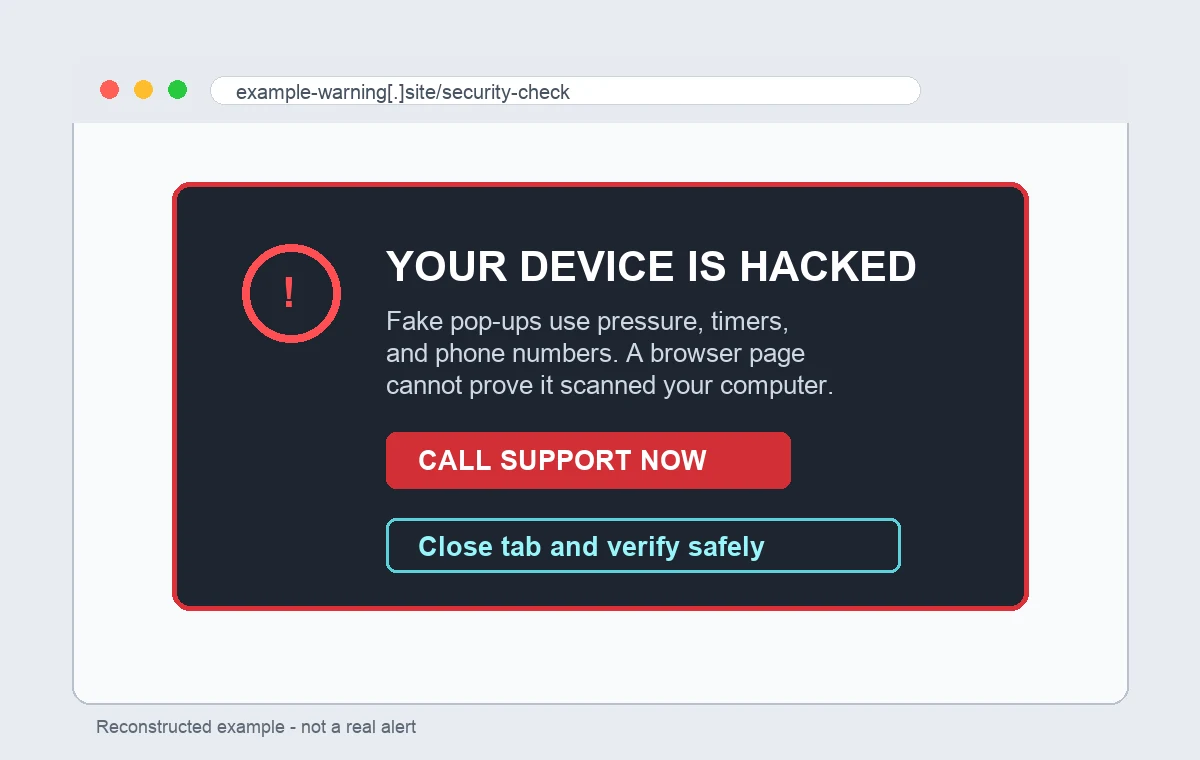
These pages claim that Windows, macOS, Android, iPhone, or your browser is infected, watched, locked, or monitored. They often use alarm sounds, countdown timers, fake scan bars, and phone numbers. Legitimate companies do not diagnose your computer through a random browser pop-up or ask you to call a number shown by an unknown site.
Fake hacker emails
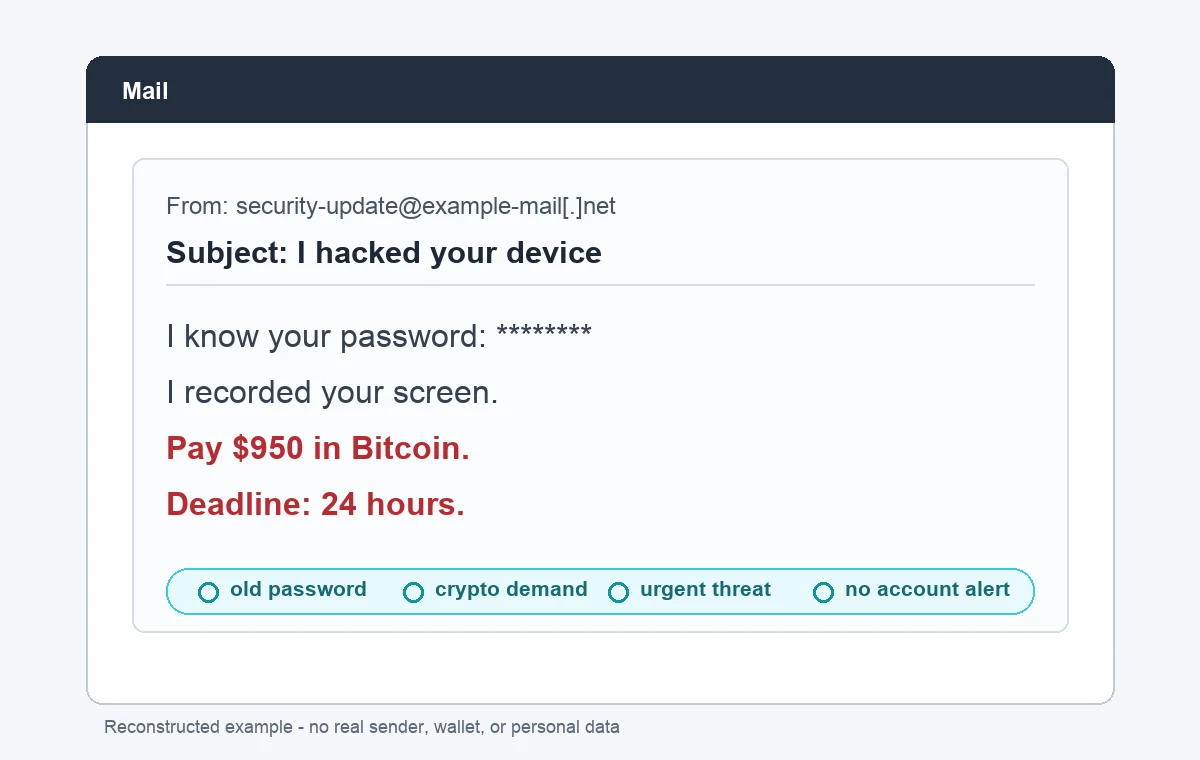
Many messages claim the sender recorded you, stole your files, or installed spyware. They may include an old password from a breach to look convincing. That does not prove your current device is hacked. It usually means your email address and an old password were leaked somewhere before.
Fake hacking websites and prank pages
Some pages imitate a terminal, show scrolling code, or pretend to “hack” an account after you type a username. These sites are often harmless-looking pranks, but they become dangerous if they ask for a real password, browser notification permission, downloads, payment, or access to a social account.
Fake account recovery and “ethical hacker” offers
Scammers also pretend they can recover hacked Instagram, Facebook, Gmail, crypto wallet, or bank accounts. They ask for an upfront fee, a login code, a seed phrase, or remote access. A real recovery flow goes through the official service, not a stranger in comments or direct messages.
Fake hack vs real hack: how to tell
| Signal | More likely fake | More likely real compromise |
| Evidence | Vague claims, fake screenshots, terminal text, old passwords | Unknown sign-ins, changed settings, sent messages, encrypted files |
| Demand | Crypto payment, gift cards, remote support call, secrecy | You notice account or device changes before any demand appears |
| Sender | Random email, unknown number, disposable social account | Official security alert visible inside the account dashboard |
| Action requested | Click a link, install a tool, enter a password, share a code | Reset password through the official website or app |
| Technical behavior | Page disappears when closed | Repeated logouts, new devices, unknown apps, persistent malware symptoms |
What to check before you decide it is real
- Email account: recent sign-ins, forwarding rules, recovery email, recovery phone, app passwords, and connected apps.
- Social accounts: active sessions, posts or messages you did not send, changed profile details, and unknown linked apps.
- Browser: notification permissions, suspicious extensions, changed search engine, redirects, and recently downloaded files.
- Windows or macOS: newly installed remote-access apps, startup items, unknown scheduled tasks, security alerts, and unusual network activity.
- Money accounts: unauthorized payments, new payees, card changes, and messages about password or device changes.
What to do first if someone says you were hacked
- Do not pay and do not reply. Payment confirms that you are reachable and may lead to more extortion.
- Do not use links from the warning. Type the official website address yourself or use the official app.
- Check account activity. Review recent sign-ins, devices, sessions, forwarding rules, recovery email, and phone number.
- Change passwords from a clean device. Start with email, banking, cloud storage, social media, and password manager accounts.
- Enable two-factor authentication. Prefer an authenticator app or hardware key where possible.
- Scan the device. Look for remote-access tools, suspicious browser extensions, startup entries, and malware.
- Save evidence. Keep screenshots, sender addresses, phone numbers, wallet addresses, and URLs for reporting.
If the fake hack came from a browser pop-up
Close the tab first. If the page will not close, force quit the browser. Then check browser notification permissions and remove unknown sites. Scareware often abuses notifications so it can keep sending “you are hacked” alerts after the original page is gone.
- Chrome/Edge: Settings -> Privacy and security -> Site settings -> Notifications.
- Firefox: Settings -> Privacy & Security -> Permissions -> Notifications.
- Safari: Settings -> Websites -> Notifications.
After that, review extensions and remove anything you did not install intentionally. If pop-ups continue, reset the browser profile and run a full malware scan.
When to treat it as a real incident
Treat the situation as real if you entered a password, installed a remote-access app, sent money, gave a one-time code, opened an attachment, or see account changes you did not make. Also take it seriously if your contacts receive messages from you, files are encrypted, browser searches redirect, or the device has unknown startup programs.
In that case, disconnect from sensitive accounts, change passwords from another device, contact your bank if payment data was entered, and scan the affected computer before using it for email or banking again.
How GridinSoft can help
On Windows, if the threat led you to run a download or install an unfamiliar app, Gridinsoft Anti-Malware can help check for trojans, browser hijackers, adware, remote-access components and malicious startup entries. Review its findings, remove unwanted items, and restart before checking again. A scammer’s message alone does not establish that anything was installed.
If a threat or fake support warning persuaded you to run an unknown Windows program, scan what it added to the PC. This checks installed software, not whether the sender's blackmail claim is true.
Scan this Windows PCOn Android, if the warning led you to install an APK or app, use Trojan Scanner for Android to scan, review findings and confirm unwanted-app removal. Browser-only warnings need site-permission cleanup. A scan cannot verify a blackmail claim or recover an exposed account.
Fake hacking threats often attach themselves to trending breach rumors. A recent example is the OnlyFans leak checker scam, where panic around an alleged leak can lead users to phishing pages, blackmail messages, or malware downloads.
References
- Federal Trade Commission. “How To Spot, Avoid, and Report Tech Support Scams.” FTC Consumer Advice, accessed June 1, 2026. https://consumer.ftc.gov/node/77268
- Microsoft Support. “Protect yourself from tech support scams.” Microsoft, accessed June 1, 2026. https://support.microsoft.com/en-us/windows/protect-yourself-from-tech-support-scams-2ebf91bd-f94c-2a8a-e541-f5c800d18435
- Federal Bureau of Investigation. “Spoofing and Phishing.” FBI, accessed June 1, 2026. https://www.fbi.gov/how-we-can-help-you/common-frauds-and-scams/spoofing-and-phishing
FAQ
Can a website really hack me just by opening it?
Most fake hacking pages cannot fully hack a modern device just because you opened them. The bigger risk is what they persuade you to do next: allow notifications, download a file, call a fake support number, enter a password, or install remote-access software.
Is an old password in a hacker email proof that I am hacked?
No. It usually means the password appeared in an older data breach. Change any account that still uses that password and avoid reusing it elsewhere.
Should I pay a hacker who threatens to leak my data?
No. Payment does not guarantee deletion and often leads to more demands. Preserve the message, secure your accounts, scan your device, and report the extortion attempt.
How do I know if my account was really hacked?
Check the account’s official security page for sign-in history, active sessions, recovery details, connected apps, forwarding rules, and recent activity. Use the official site or app, not links from the suspicious message.