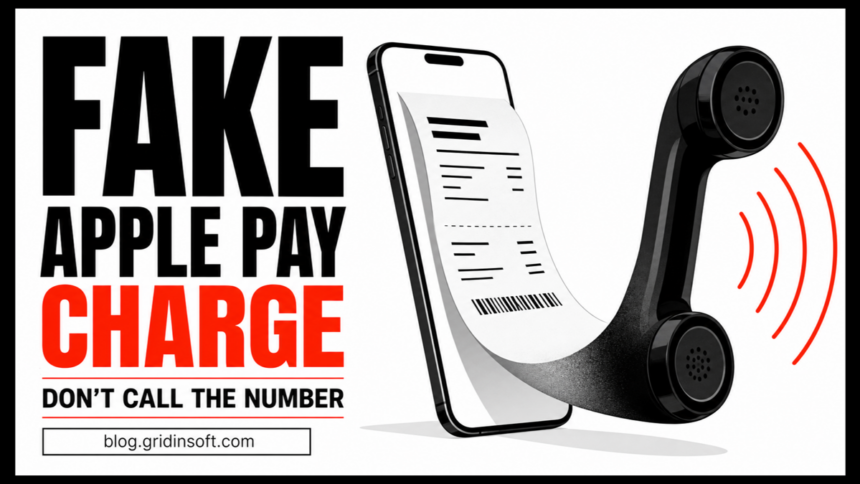
A page that looks like Apple Pay can show a spinning payment message, claim that Face ID is checking you, speak an urgent warning, and resist the browser’s Back button. None of that proves a charge exists. In the campaign analyzed by Malwarebytes, those effects came from ordinary webpage code; the goal was to make the visitor call a fake Apple Support number.[1]
If this page is on your phone now, do not tap its call button. Close the tab from the browser’s tab switcher or force-close the browser. Then check Wallet and your card account independently. Seeing the page alone does not authorize a payment, use Face ID, lock the iPhone, or give a caller remote access.
Why the Apple Pay screen is fake
The scam borrows familiar Apple Pay language but does not behave like the Apple Pay sheet built into iOS. The analyzed page showed the same amount and transaction identifier to different visitors. It inserted the phone’s current date to look fresh, used the browser’s speech-synthesis feature to read a warning aloud, and manipulated browser history so Back appeared ineffective.[1]
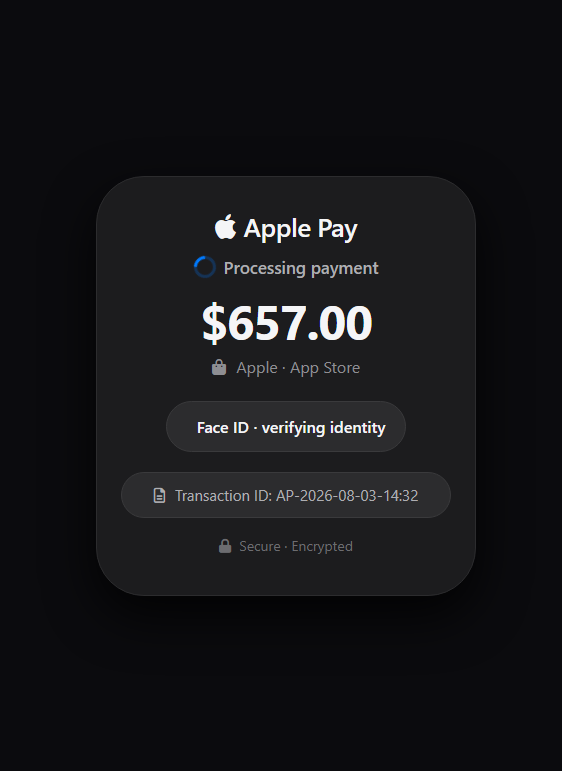
The Face ID label is also just page content. A website can draw text, a spinner, a padlock, and an Apple-like panel. It cannot turn that drawing into a successful biometric authorization. A real Apple Pay confirmation appears in the system payment interface and is tied to a merchant, a payment card, and an authentication action you initiate.
The spoken message is designed to make the page feel like a device-level alert. It is not. Browsers can read text aloud through a normal web API. The page may also use full-screen styling and repeated history entries, but it cannot permanently lock the phone. Switching tabs, closing the browser, or restarting the phone breaks that illusion.
What to do based on what happened
You only saw the page
- Do not call, tap Verify, or use any link shown on the page.
- Open the browser’s tab overview and close the tab. If it keeps returning, force-close the browser and reopen it without restoring that tab.
- Open Wallet yourself and check the card’s recent activity. Also check the card issuer’s app or website; Apple notes that the issuer may have the most accurate transaction record.[3]
- If there is no matching transaction, save a screenshot only if you want to report the page, then clear the site’s browsing data. Do not revisit the address to collect more evidence.
You do not need to replace a card or change an Apple Account password merely because the page loaded. The risk changes only if you called, shared information, approved a prompt, installed something, or found a real unknown transaction.
You tapped the call button but did not speak
Cancel the call and block the number. A tel: link can open the Phone app, but it cannot silently complete a call or hand over the device. Watch for follow-up calls or texts, because the scammer may now know that someone reached the page.
You spoke to the caller but shared nothing
End the call. Do not accept a callback, and do not move the conversation to text, WhatsApp, or another app. Contact Apple or the card issuer through a number or app you found independently. Apple says its support representatives will not ask for an Apple Account password, device passcode, two-factor code, or request that you tap Allow on another device to provide support.[2]
You shared a password, code, card details, or identity data
- From a clean device, change the exposed Apple Account or email password and sign out unknown sessions.
- Call the card issuer using the number printed on the card. Ask the fraud team to review pending and completed transactions and replace the card if its details were disclosed.
- If you gave a verification code, say so explicitly. A code may have approved an account login or payment even when the webpage itself could not.
- Preserve the page address, call time, messages, and any payment receipts. Report financial loss to the relevant bank and national fraud-reporting service.
You installed an app, configuration profile, or remote-support tool
Disconnect the device from the internet and stop using it for banking until the access is removed. On iPhone, check Settings → General → VPN & Device Management for an unknown profile. Our iPhone configuration-profile guide explains the difference between downloading and installing one. If a Windows or Mac support app was installed, use the remote-access scam cleanup sequence and secure accounts from a separate device.
The FTC’s rule is useful here: real security pop-ups do not ask you to call a phone number. A caller who wants remote access or payment is extending the scam, not fixing the alert.[4]
How to verify a real charge
First decide what the page claims. Apple Pay card transactions and App Store purchases are checked in different places:
- Apple Pay card purchase: open Wallet, select the card, and review recent transactions. Then compare the result with the card issuer’s app or statement. A merchant name may differ slightly, so use the amount and time as well as the label.[3]
- App Store, subscription, or Apple service purchase: open Settings → [your name] → Media & Purchases → View Account → Purchase History, or go directly to Apple’s reportaproblem.apple.com. Do not use a link from the warning page.
- No record in either place: treat the page as a fake notice, not a hidden charge. Close it and report the malicious URL through the browser or hosting provider if practical.
- A matching unknown transaction exists: dispute it with the card issuer and secure the Apple Account. The fake page may be unrelated to the real transaction, so handle the bank evidence separately.
Why scammers want a phone call
A webpage can frighten many visitors cheaply, but a live caller can adapt. The operator can claim the account is locked, ask for a verification code, direct the victim to buy gift cards, or persuade them to install remote-access software. Moving to a call also separates the victim from the browser’s security indicators and gives the scammer continuous pressure.
The campaign’s “Apple ID locked” language is another clue. Apple now calls the login an Apple Account, although older terminology still appears in conversations. Terminology alone is not decisive; the decisive signs are the unrequested charge, the page-controlled Face ID imitation, and the phone number presented as the only way out.
References
- Malwarebytes. Analysis of the fake Apple Pay charge and support-call flow, August 27, 2026. Read the analysis.
- Apple Support. Recognize and avoid social engineering schemes. Read Apple’s guidance.
- Apple Support. View Apple Pay transaction history. Check the steps.
- Federal Trade Commission. Urgent security messages and tech-support scams. Read the consumer alert.