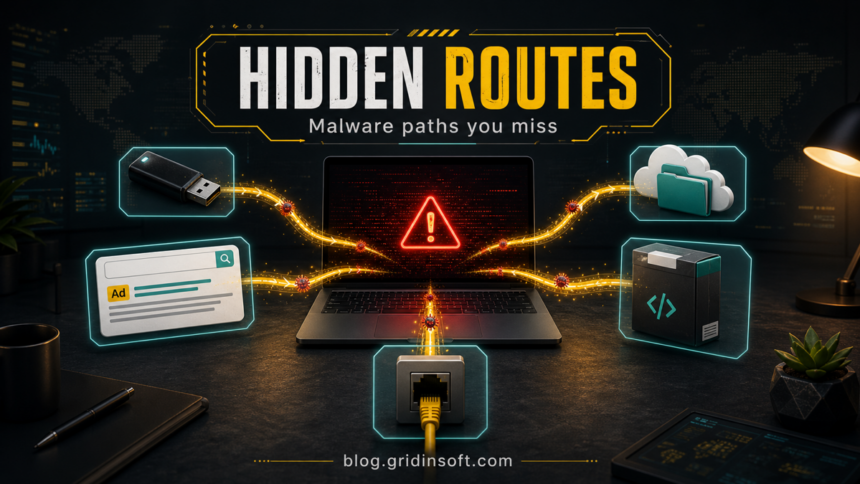
Malware does not spread only through suspicious email attachments or obviously fake downloads. A Windows PC can also be exposed through search ads that imitate trusted software, shared cloud folders, infected USB drives, poisoned package updates, cracked installers, and shared network folders. The common pattern is simple: the path looks normal, the user or system runs something, and the payload then tries to stay installed, steal credentials, or move to other reachable files and devices.
This guide focuses on the less obvious routes that still matter in 2026, how to recognize each one, and what to check first if you think one of them touched your computer.
Why hidden malware routes are a real risk
Attackers prefer channels that already feel trusted. A search ad looks like a shortcut to the official download. A OneDrive or Google Drive link feels safer than a random attachment. A USB drive may come from work, school, a friend, or an event. A package update can look like normal developer maintenance. That trust gap is what makes these routes effective.
The risk is not that every cloud link, ad, USB device, or package update is malicious. The risk is that these paths reduce suspicion at the exact moment when the user must decide whether to open a file, allow a script, run an installer, approve a prompt, or reuse a password.
Hidden malware routes at a glance
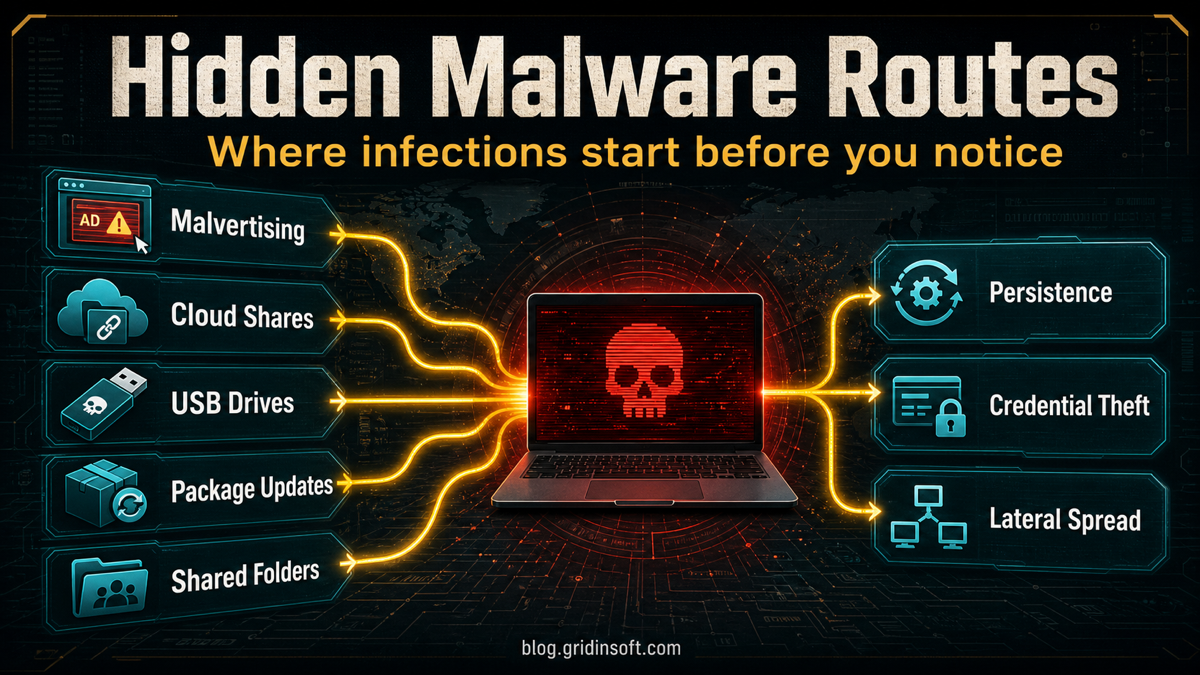
Use this map as the mental model: malware usually needs a trusted-looking path, a user or system action, a payload that runs, and then a follow-up step such as persistence, credential theft, encryption, or lateral spread.
| Route | What makes it dangerous |
|---|---|
| Malvertising and fake search ads | The result looks like a normal download page, but the installer is swapped or wrapped with a payload. |
| Cloud-share links | Files hosted on trusted cloud platforms can bypass the “random attachment” warning in a user’s mind. |
| USB drives and removable media | Worms and staged payloads can use removable drives to reach machines that are rarely exposed online. |
| Package updates and repositories | Developers and power users may run package scripts with high trust and little visual inspection. |
| Shared folders and network drives | Once one machine is infected, reachable shares can become a staging area for more infections or encrypted files. |
1. Malvertising and fake search ads
Malvertising works because the first result a user sees is not always the safest result. Attackers buy or abuse ads for popular tools, drivers, remote-access utilities, browser updates, crypto apps, office tools, and game utilities. The landing page may copy the real brand, use a similar domain, and deliver an installer that looks ordinary until it runs.
This is why “I downloaded it from Google” is not enough proof that the file was safe. Search ads can lead to fake installers, and compromised legitimate sites can also redirect visitors to exploit or scam pages. MITRE ATT&CK treats drive-by compromise as an initial-access technique and includes malicious ads served through legitimate ad providers as one possible route.[2]
What to check: inspect the domain before downloading, avoid ad-labeled installer results when possible, compare the URL with the vendor’s known domain, and scan downloaded installers before opening them. If the installer asked for unusual permissions, installed extra software, or immediately changed browser/search settings, treat it as suspicious.
Related Gridinsoft guide: Google Search malvertising and fake ads.
2. Cloud-share links that carry infected files
Cloud storage is useful for normal collaboration, but it also gives attackers a cleaner-looking delivery path. A link from OneDrive, Google Drive, Dropbox, Box, or another sharing service may look less suspicious than an executable attached directly to an email. That matters because many infections still need the user to download, unzip, enable content, run a shortcut, or open a script.
Cloud-share abuse often appears in fake invoices, job files, pirated software, “portfolio” archives, game cheats, cracked tools, and support conversations. The storage provider may remove the file later, but the link can stay active long enough to infect many users.
What to check: look at the file extension, not only the icon. Be suspicious of password-protected archives, ISO files, LNK shortcuts, JavaScript/VBS/PowerShell files, and installers shared by people you did not expect to send software. If the file came through a cloud link and then triggered a security warning, scan the device and change passwords from a clean device.
3. USB drives and removable media
USB-based spread is old, but it is not dead. Microsoft notes that many worms can spread through removable drives such as USB flash drives or external hard drives.[1] The modern version is often less dramatic than the old AutoRun era: a drive may contain a malicious shortcut, a fake document, a renamed executable, a hidden script, or a payload that waits for the user to open what looks like a normal folder or file.
What to check: do not open unknown USB drives on your main PC. If you must inspect one, use a restricted machine, keep file extensions visible, avoid running shortcuts or executables, and scan the drive first. If a drive was connected before you noticed suspicious files, check startup entries, recent downloads, browser extensions, and security-tool detections.
4. Package updates and developer repositories
Developers, admins, and power users face a different hidden route: trusted package workflows. A malicious package, compromised repository, poisoned dependency, or altered update script may run during install, build, or post-install steps. This is especially dangerous because package managers and CI jobs often run quickly, produce lots of output, and are trusted by default.
CISA has warned about software supply-chain compromises that affect repository and build workflows, including guidance to pull packages only from known and trusted sources.[3] For individual users, the same idea applies to unofficial mods, plugins, browser extensions, cracked tools, and “helper” packages copied from random instructions.
What to check: pin versions where possible, avoid copying package-install commands from untrusted pages, review maintainers and recent package changes, and do not run install scripts with administrator rights unless there is a clear reason. If a package install behaved strangely, rotate exposed tokens and passwords, then inspect scheduled tasks, startup items, shell profiles, and recently modified project files.
5. Shared folders and network drives
Shared folders are convenient, but they can become a second-stage spread path after one computer is compromised. Malware may copy itself to reachable shares, replace files, drop ransom notes, encrypt shared documents, or use stolen credentials to access more systems. This is why a malware event on one family or office PC can become a bigger incident when the machine has write access to shared storage.
What to check: disconnect suspicious machines from the network before cleaning, review recently changed files on shared drives, remove unnecessary write access, and make sure backups are not constantly writable from normal user accounts. For businesses, logs from file servers, endpoint tools, and identity systems are often more useful than guessing from one infected endpoint.
6. Cracked software, torrents, and bundled installers
Cracked software remains one of the most reliable malware delivery paths because the user is already expecting to bypass normal protections. The file may be a repack, a fake activator, a “patch,” a keygen, a cheat, or an archive that requires disabling antivirus before installation. That instruction alone is a major warning sign.
Pirated installers often hide coin miners, infostealers, proxyware, remote-access trojans, or browser hijackers. Some payloads stay quiet when the computer is busy and run harder when the user is away, which makes the infection feel like normal performance trouble instead of an obvious compromise.
What to check: if you ran a crack or activator, assume passwords and browser sessions may be exposed until proven otherwise. Uninstall the software, scan the system, check browser extensions, remove unknown startup entries, and change important passwords from a clean device.
Related Gridinsoft guides: torrenting risks, remote access trojans, and coin miner malware.
What to do if one of these routes touched your PC
- Disconnect first if behavior is active. If files are being encrypted, unknown windows are opening, or the machine is making suspicious network connections, disconnect Wi-Fi/Ethernet before investigating.
- Do not keep testing the same file. Re-running a suspicious installer, shortcut, or script can make cleanup harder.
- Scan the downloaded file and the whole system. Use your installed security tool and a second-opinion scanner such as Gridinsoft Anti-Malware when the file came from an ad, crack, cloud share, USB drive, or unknown package command.
- Check persistence points. Review startup apps, scheduled tasks, browser extensions, recently installed programs, and unknown services.
- Protect accounts. If an infostealer is possible, change passwords from a clean device, revoke suspicious sessions, and enable MFA on email, banking, crypto, gaming, and work accounts.
- Check shared locations. Review network drives, cloud-synced folders, and removable drives for newly modified files, duplicate shortcuts, ransom notes, or unknown executables.
- Restore carefully. Restore files only after the system is clean; otherwise, synced folders and backups can be touched again.
After uninstalling the suspicious app or deleting the visible threat, use Gridinsoft Anti-Malware to check hidden files, startup entries, scheduled tasks, bundled apps, browser changes, and other persistence points that can restore malware.
Download Anti-MalwarePrevention rules that actually reduce risk
- Treat the source and the behavior separately. A file from a trusted platform can still be malicious if the sender, domain, or file behavior is wrong.
- Keep extensions visible. Icons lie; extensions reveal whether a “document” is actually a shortcut, script, archive, or executable.
- Avoid ad-result downloads for software. Go directly to the vendor domain or a known app store when downloading tools and drivers.
- Limit removable media. Scan USB drives before opening files and block unknown devices in work environments when possible.
- Use least privilege. Daily work should not require administrator rights. Malware that runs as a standard user usually has less room to damage the system.
- Back up offline or with versioning. Backups that are always writable from the infected machine can be encrypted or modified too.
- Monitor browser and account changes. New extensions, changed search settings, unexpected login alerts, and MFA prompts can be early signs of compromise.
FAQ
Can malware spread through a USB drive in 2026?
Yes. It is less automatic than in older AutoRun-heavy days, but USB drives can still carry malicious shortcuts, renamed executables, scripts, infected files, or payloads that rely on the user opening something.
Can malware spread through OneDrive or Google Drive?
The cloud platform itself is not the problem. The risk is the file shared through it: a malicious archive, installer, script, shortcut, or document can still infect a device if the user downloads and runs it.
Are search ads safe for downloading software?
Not always. Attackers can abuse ads or fake landing pages to impersonate popular software. For important tools, type the vendor domain directly or use a trusted app store instead of clicking an ad result.
What is the first sign that a hidden malware route worked?
Common early signs include a security alert, unknown startup item, browser search changes, new extension, unusual network activity, disabled protection, slow performance, or account login alerts soon after opening a file or installer.
References
- Microsoft Support. “How malware can infect your PC.” Microsoft, accessed June 11, 2026. https://support.microsoft.com/en-us/security/how-malware-can-infect-your-pc
- MITRE ATT&CK. “Drive-by Compromise, Technique T1189.” MITRE, accessed June 11, 2026. https://attack.mitre.org/techniques/T1189/
- Cybersecurity and Infrastructure Security Agency. “Supply Chain Compromises Impact Nx Console and GitHub Repositories.” CISA, May 28, 2026, accessed June 11, 2026. https://www.cisa.gov/news-events/alerts/2026/05/28/supply-chain-compromises-impact-nx-console-and-github-repositories