

Safari shows “Can’t Establish a Secure Connection” when it cannot validate a website’s encrypted connection. Do not make an unknown certificate “Always Trust” just to open the page. First check whether the error affects one site or many sites, and whether it follows the same network on a Mac, iPhone, or iPad. A one-site failure on every device usually needs the website owner to repair its certificate or TLS configuration; failures across many sites more often point to the device, network, VPN, profile, or clock.
Find the Cause Before Changing Settings
| What you see | Most useful next check |
|---|---|
| One site fails on every device and network | The site certificate or TLS setup is probably the problem. Do not enter passwords or payment details; contact the site owner. |
| One site fails only on one Apple device | Try a Private Window, remove only that site’s data, and temporarily test content blockers, Private Relay, or VPN. |
| Many sites fail only on one Wi-Fi network | Complete the network sign-in page, restart the router, or compare with cellular data or another trusted Wi-Fi network. |
| Many sites fail on one device across networks | Check automatic date and time, software updates, VPN/security software, proxy settings, and installed profiles. |
| The device is managed by work or school | Do not remove certificates or profiles yourself. Ask the administrator whether the required filter or certificate is current. |
Safari can block a page when a certificate is expired, illegitimate, issued for another hostname, or paired with obsolete TLS. Apple advises against entering sensitive information on a site marked Not Secure. [3]
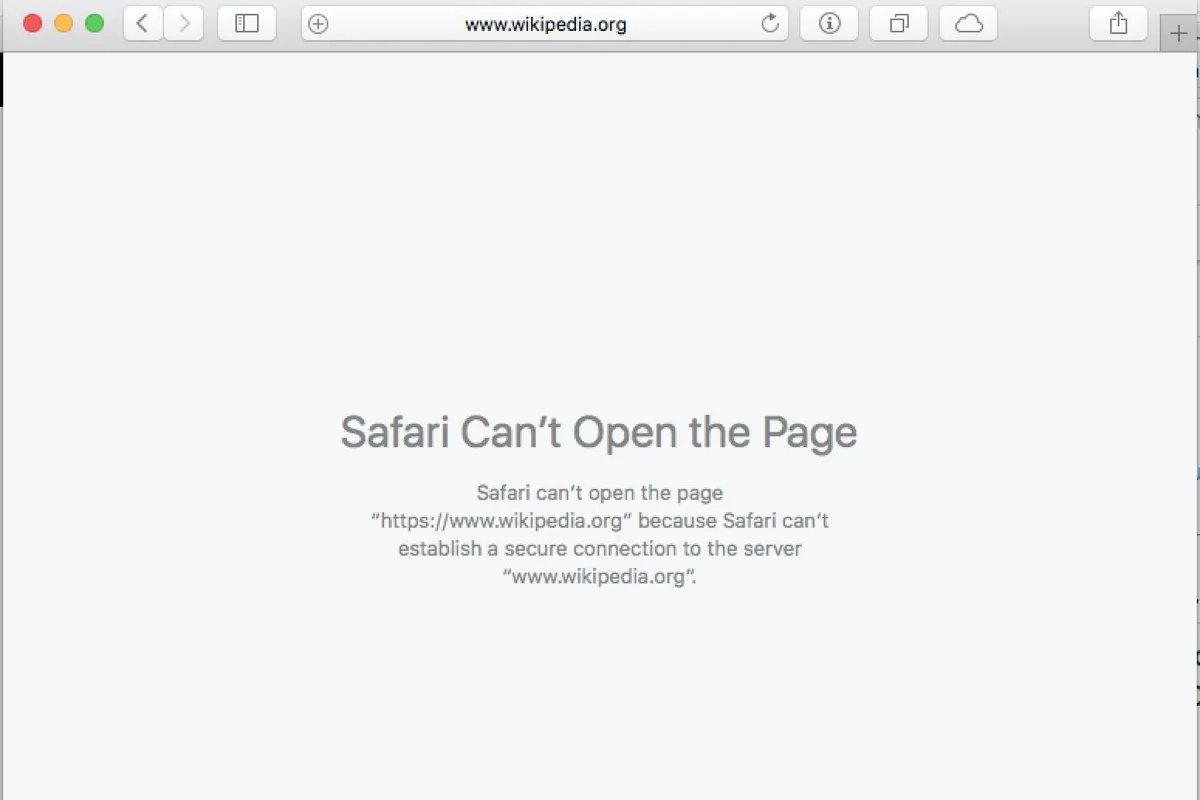
How to Fix Safari on a Mac
- Check date and time. Open System Settings > General > Date & Time and enable automatic date and time. A badly wrong clock can make a valid certificate appear expired or not yet valid.
- Update macOS and restart. Safari is included with macOS, so browser security fixes arrive through macOS updates. Restart after updating.
- Test a Private Window. Choose File > New Private Window. If the site works there, open Safari > Settings > Privacy > Manage Website Data and remove data for the affected site instead of clearing everything.
- Test site-specific settings. Temporarily disable a content blocker or Safari extension for the affected site. Re-enable it after the test. If one extension causes the failure, update or remove it rather than leaving all protection disabled.
- Test Private Relay safely. When iCloud Private Relay is active, choose View > Reload and Show IP Address for the affected page. This is a narrower test than turning Private Relay off everywhere.
- Check VPN, filtering, proxy, and DNS software. Pause only the tool you recognize, reload once, and turn it back on after the test. If another browser and another device also fail on the same network, the network or website is a stronger suspect.
- Compare another network. Try a trusted hotspot or other Wi-Fi connection. If many sites fail only on one network, finish its captive-portal sign-in and restart the router before changing advanced settings.
Apple’s current Mac guidance follows the same narrow sequence: update and restart, test a Private Window, review extensions and website data, then check Private Relay, VPN/security software, and network settings. [1] There is no routine reason to disable IPv6 to fix a certificate warning.
How to Fix Safari on an iPhone or iPad
- Switch networks. If possible, compare the page over cellular data and a different trusted Wi-Fi network. Check the VPN setting if a VPN is active.
- Restart the iPhone or iPad. This also restarts Safari’s network processes.
- Clear Safari website data if needed. Open Settings > Apps > Safari > Clear History and Website Data. Use this after the network comparison because it signs you out of websites and removes browsing data.
- Check JavaScript. Open Settings > Apps > Safari > Advanced and make sure JavaScript is enabled for ordinary websites.
- Test Private Relay. If only one site fails, temporarily turn off Private Relay in iCloud settings, reload the site once, and turn it back on after the test.
- Inspect profiles only when relevant. If the error began after installing a VPN, certificate, or configuration profile, open Settings > General > VPN & Device Management. Remove only an item you installed and recognize as untrusted. Ask the administrator before changing a work- or school-managed profile.
Apple’s iPhone and iPad troubleshooting specifically recommends comparing networks, checking VPN, restarting, clearing website data, verifying JavaScript, and testing Private Relay for a one-site failure. [2]
Do Not Bypass an Unknown Certificate
Do not import a certificate, install a configuration profile, or select Always Trust in Keychain merely because a page tells you to. That can hide the warning without repairing the website and may allow traffic inspection. A legitimate employer or school may use a managed certificate, but its administrator should provide and maintain it.
If the warning appeared after a site asked you to download a .mobileconfig profile, certificate, VPN app, or installer, close the page and do not open the file again. For a profile attachment, use the iPhone .mobileconfig phishing checklist to distinguish previewing, downloading, and actual installation before removing anything. Review other downloaded files from a trusted Mac or PC with the Gridinsoft Online Virus Scanner before using or sharing them.
When the Website Owner Must Fix It
If the same site fails in Safari and another browser, on multiple devices, and on more than one network, local browser changes are unlikely to help. The owner should verify that the certificate is current, covers the requested hostname, includes the required intermediate certificates, and supports modern TLS. Readers should wait for that repair rather than bypassing the warning.
If another browser shows ERR_SSL_PROTOCOL_ERROR or a general secure-connection failure, use the broader secure connection and SSL error guide. For Chrome or Edge privacy warnings, see the separate Your Connection Is Not Private guide. These pages cover different browser messages and should not be treated as instructions to override Safari certificate trust.
FAQ
Why does an iPad say it can’t establish a secure connection?
The iPad may be on a network that needs a sign-in, using a VPN or Private Relay path the site blocks, holding stale website data, or reaching a site with a broken certificate. Compare another network first, then follow the iPhone/iPad steps above.
Why does Safari fail on only one website?
A one-site failure often points to that site’s certificate, TLS configuration, stored site data, content-blocker rules, or Private Relay compatibility. If it fails on multiple devices and networks, contact the site owner.
Is it safe to choose Always Trust for a website certificate?
Not as a routine fix. Only trust a certificate when a known administrator has verified why it is required and who issued it. Never use Always Trust to silence a warning from an unfamiliar site.
References
- Apple Support. “If Safari doesn’t work as expected on Mac.” Apple, published December 5, 2025; accessed July 27, 2026. support.apple.com/en-us/102564
- Apple Support. “If Safari isn’t loading websites or quits on your iPhone, iPad, or iPod touch.” Apple, published March 30, 2026; accessed July 27, 2026. support.apple.com/en-us/102456
- Apple Support. “If you see a ‘Not Secure’ warning while browsing with Safari.” Apple, published July 14, 2026; accessed July 27, 2026. support.apple.com/en-us/102279



Instructions are not relevant to iphone 4 mini running IpadOS 15,8,2