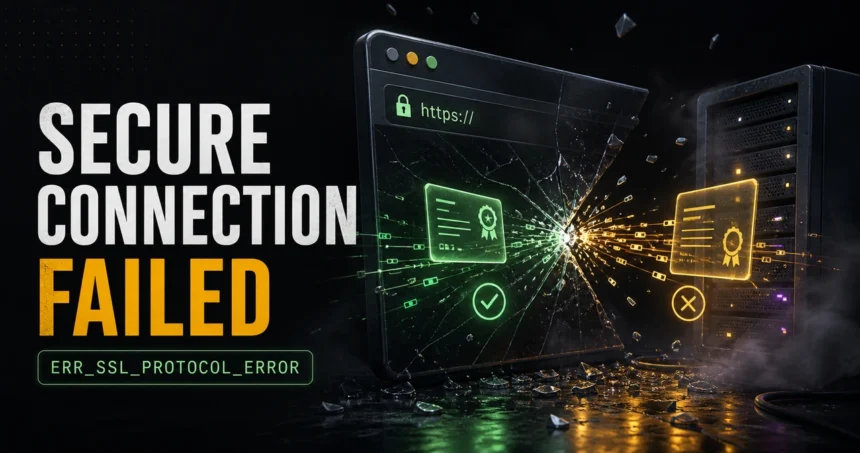
The message “This site can’t provide a secure connection” usually means the browser could not finish the HTTPS/TLS handshake with the site. In Chrome and Edge it often appears with ERR_SSL_
What This Error Means
A secure connection is an HTTPS connection that uses a valid certificate and modern TLS encryption. Your browser checks the certificate, domain name, validity dates, trusted issuer, and the encryption versions offered by the server. If that check fails before a safe connection is created, the browser stops the page instead of quietly loading it.
This error is close to, but not always the same as, “Your connection is not private”. Use this guide when Chrome or Edge says a site can’t provide a secure connection or shows ERR_SSL_
Quick Triage: Is It Your Device or the Website?
Before changing settings, test the error in a controlled way:
- Reload the page once and check the exact error code under the browser message.
- Open the same URL in another browser, such as Edge, Chrome, Firefox, or Safari.
- Try another device or network, for example mobile data instead of the same Wi-Fi.
- Check whether many HTTPS sites fail or only one domain fails.
If one website fails everywhere, the site probably has an expired certificate, wrong certificate, unsupported TLS version, or server-side HTTPS misconfiguration. You usually cannot fix that from your computer. If many sites fail, or the error appears only in one browser, continue with the fixes below.
Match the Error Message to the Right Fix
Searchers often describe the same HTTPS failure in different words. Use the exact browser message to choose the right branch before changing system settings:
- Chrome or Edge: “This site can’t provide a secure connection” / ERR_SSL_
PROTOCOL_ Start with the triage above, then clear site data, check extensions, SSL state, VPN/proxy, antivirus HTTPS scanning, and browser updates.ERROR. - Chrome: ERR_SSL_VERSION_
OR_CIPHER_ This more often points to a server, old router, printer, NAS, or internal panel that does not support modern TLS. Do not enable obsolete protocols for normal browsing.MISMATCH or “unsupported protocol.” - Firefox: “Secure Connection Failed” or “Did Not Connect: Potential Security Issue.” Check the Firefox error code, but use the same split: one website usually means a site-side TLS/certificate problem; many websites usually means local clock, proxy, security software, or certificate-store trouble.
- Safari: “can’t establish a secure connection to the server.” If the problem is Safari-specific, use the dedicated Safari secure-connection guide; if Chrome/Edge show ERR_SSL_
PROTOCOL_ ERROR for the same site, stay with this guide. - Every HTTPS website fails at once. Treat it as a device, network, DNS/proxy, security-software, or interception problem until proven otherwise.
Common Causes
- Wrong date, time, or time zone. Certificate checks depend on your system clock. A clock that is days, months, or years wrong can make valid certificates look expired or not yet valid.
- Old browser cache, SSL state, or HSTS state. The browser may keep stale connection data after a certificate or server configuration changes.
- VPN, proxy, captive portal, or filtered network. Public Wi-Fi login pages, corporate filters, and VPN gateways can interrupt HTTPS negotiation.
- HTTPS scanning by security software. Some antivirus or firewall products inspect encrypted traffic by installing a local certificate. A broken local certificate or inspection module can trigger SSL errors.
- Problematic extensions. Ad blockers, coupon extensions, download helpers, and traffic-changing extensions can interfere with secure requests.
- Server-side TLS or certificate problems. The site may use an expired certificate, a certificate for the wrong hostname, weak ciphers, or unsupported TLS settings.
- Possible interception or malware. If SSL errors start after installing a browser extension, proxy tool, cracked app, or fake update, treat it as suspicious and inspect the device.
Fix “This Site Can’t Provide a Secure Connection”
1. Fix Date, Time, and Time Zone
On Windows, open Settings -> Time & language -> Date & time. Turn on automatic time and time zone, then click Sync now. Restart the browser and open the same URL again.
If the clock keeps drifting after every restart, the problem may be deeper than the browser. A weak CMOS battery, broken time synchronization, or wrong dual-boot time setting can keep causing certificate errors.
2. Check the URL and Try HTTPS/HTTP Carefully
Make sure the address is typed correctly and that you are not using an old bookmark with the wrong subdomain. If the site has both www and non-www versions, try the version linked from the site’s official search result or documentation.
Do not enter passwords, payment data, or personal information on an HTTP page just because HTTPS failed. If a site asks you to bypass a browser warning before logging in, leave the page and contact the site owner through a known-safe channel.
3. Test Private Browsing, Then Clear Data for the Affected Site
Use this branch when the URL works in another browser or a private window, but fails in your usual profile. In Chrome, open an Incognito window with Ctrl + Shift + N; in Edge, the same shortcut opens InPrivate. Paste the exact failing URL. If it still fails on another device and network, deleting browser data will not repair the website’s TLS configuration.
If the private-window test works, remove the affected site’s stored data first. This can sign you out of that site and remove its saved preferences; it does not require deleting passwords or the cookies of unrelated sites.
- Chrome: open Settings → Privacy and security → Third-party cookies → See all site data and permissions. Search for the domain, select its Delete button, and confirm Delete.[4]
- Edge: open Settings → Privacy, search, and services → Cookies → See all cookies and site data. Search for the domain, expand its entry, and delete its cookies.[5]
- Close the site’s open tabs, open the same URL in a normal window, and check the exact error again.
What the result means: if the normal window now works, the profile’s stored site data was a likely contributor. If only the private window works, test the extensions in the next step: private browsing changes both site storage and which extensions run, so it does not isolate cookies by itself. If needed, use Ctrl + Shift + Delete to clear only Cached images and files, leaving passwords, history, and unrelated cookies unselected, then retest. Stop repeating data deletion if the same error remains.
4. Disable Recent Extensions
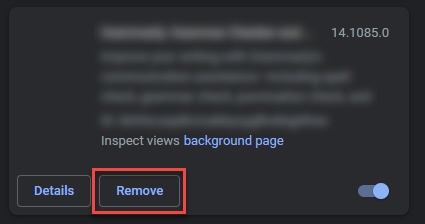
Open chrome://extensions or edge://extensions and disable recently added extensions first. Pay special attention to ad blockers from unknown publishers, coupon tools, search helpers, download managers, VPN extensions, and anything that claims to “secure” or “accelerate” browsing.
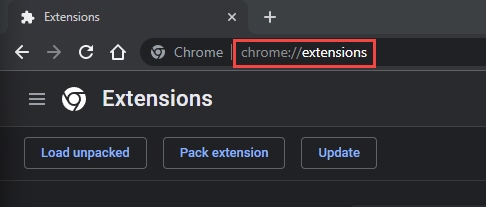
If disabling an extension fixes the SSL error, remove that extension and review whether it changed your search engine, proxy, homepage, or notification settings.
5. Reset the Windows SSL State
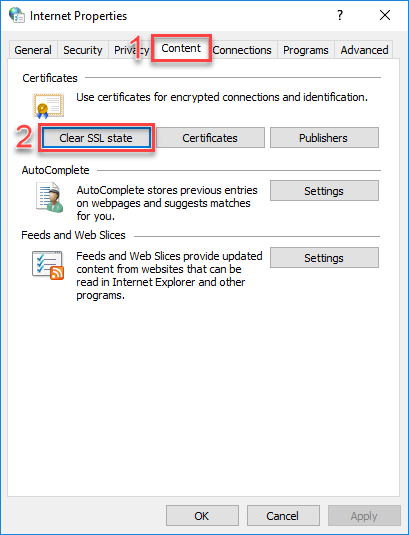
Windows keeps certificate and SSL session data outside the browser. To reset it:
- Open the Start menu.
- Search for Internet Options and open it.
- Select the Content tab.
- Click Clear SSL state.
- Close and reopen the browser.
6. Test VPN, Proxy, Antivirus, and Firewall Settings
Temporarily disconnect from a VPN or proxy and test the same URL. If you are on public Wi-Fi, open a plain HTTP page or the network’s login page to complete the captive portal login before trying secure sites again.
If the error started after enabling antivirus HTTPS scanning or a web-protection module, disable only that HTTPS inspection feature for a short test. Do not leave protection off permanently. If disabling HTTPS scanning fixes the problem, update or reinstall the security product so it restores a valid local certificate chain.
7. Update the Browser and Operating System
Open chrome://settings/help or edge://settings/help and install available browser updates. Also install current Windows updates. Old browser builds and old TLS libraries may fail against modern HTTPS servers.
Avoid guides that tell you to solve this by enabling SSL 2.0, SSL 3.0, TLS 1.0, or TLS 1.1 for normal browsing. Those protocols are obsolete or deprecated; modern sites should support TLS 1.2 or TLS 1.3 instead.
8. Do Not Force Old SSL/TLS Protocols
Older versions of this fix often recommended enabling legacy SSL/TLS checkboxes in Internet Options. That is no longer safe general advice. SSL 2.0, SSL 3.0, TLS 1.0, and TLS 1.1 are obsolete/deprecated, and enabling them can weaken your browser or system security. If a device such as an old router, printer, NAS, or internal control panel requires ancient TLS, isolate that access to a trusted local network and update the device firmware instead of weakening everyday browsing.
When the Website Owner Must Fix It
If the same site fails on several devices and networks, the website owner must repair the HTTPS configuration. Typical server-side fixes include renewing the certificate, installing the correct intermediate certificate chain, matching the certificate to the hostname, enabling TLS 1.2/TLS 1.3, and removing obsolete cipher suites.
As a visitor, your safest option is to wait, use the site’s official app or support channel, or contact the owner. Do not use random mirror sites or browser-warning bypasses for banking, email, shopping, crypto, government, medical, or work accounts.
When to Suspect Malware or Interception
One SSL error on one site is usually not malware. Investigate more carefully when:
- many unrelated HTTPS sites fail at the same time;
- the error began after a fake update, cracked app, browser extension, or remote-support session;
- your browser proxy, DNS server, homepage, or search engine changed without permission;
- certificate details show an unknown local issuer for many websites;
- security tools report blocked outbound traffic or suspicious browser activity.
In that situation, remove unknown extensions, check proxy/DNS settings, and scan the device with a trusted security tool. You can also check a suspicious domain with the Gridinsoft URL scanner before entering credentials or downloading files.
FAQ
What does ERR_SSL_PROTOCOL_ERROR mean?
It means the browser could not complete a valid SSL/TLS connection with the site. The cause can be local browser data, a VPN/proxy/security product, or the website’s certificate and TLS configuration.
Can I bypass “This site can’t provide a secure connection”?
Do not bypass it for accounts, payments, downloads, or personal data. If the site is an old local router or internal device, use a trusted local network and update the device firmware instead of weakening browser security.
Why does the error happen in Chrome but not Firefox?
That usually points to Chrome profile data, extensions, cached SSL/HSTS state, a Chrome-specific setting, or a browser version issue. Clear site data, disable extensions, and update Chrome before changing system-wide settings.
Why does every HTTPS website show a secure-connection error?
System-wide SSL errors usually point to the device clock, VPN/proxy settings, antivirus HTTPS inspection, DNS/proxy hijacking, or a broken local certificate store. Fix the system cause before entering passwords anywhere.
References
- Google Chrome Help. “Fix connection and loading errors in Chrome.” Google, accessed June 7, 2026. https://support.google.com/chrome/answer/6098869
- Mozilla Support. “Secure connection and security warning error pages in Firefox.” Mozilla, accessed June 7, 2026. https://support.mozilla.org/en-US/kb/secure-connection-failed-firefox-did-not-connect
- RFC Editor. “RFC 8996: Deprecating TLS 1.0 and TLS 1.1.” RFC Editor, March 2021, accessed June 7, 2026. https://www.rfc-editor.org/rfc/rfc8996
- Google Chrome Help. “Delete, allow, and manage cookies in Chrome.” Accessed September 8, 2026. Delete, allow, and manage cookies in Chrome
- Microsoft Support. “Manage cookies in Microsoft Edge: View, allow, block, delete and use.” Accessed September 8, 2026. Manage cookies in Microsoft Edge: View, allow, block, delete and use