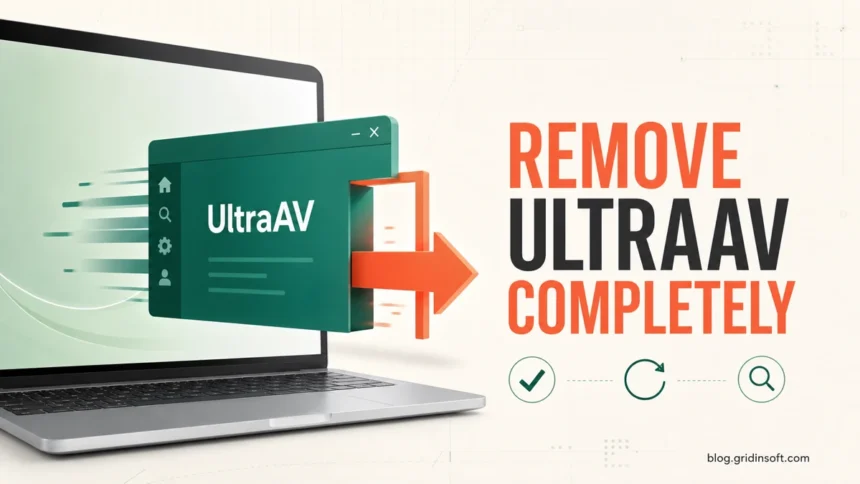
UltraAV is legitimate security software, not malware, but you can remove it if you no longer want it. Start with Settings → Apps → Installed apps → UltraAV → Uninstall, complete the vendor wizard, and then restart Windows. If the uninstaller repeats the reboot request, C:\Program Files\UltraAvApp remains protected, or an UltraAV-related process or service is still active, do not force-delete the folder or registry entries. First verify whether the app is still installed and running, then follow the failed-uninstall path below. Before finishing, make sure Microsoft Defender or another trusted antivirus is active.
How to Remove UltraAV Completely
- Check your subscription first. Removing the Windows app does not automatically cancel an UltraAV subscription. If you also want billing to stop, handle that separately in the UltraAV account or through its support team.
- Use the official Windows uninstall route. Open Settings → Apps → Installed apps, search for UltraAV, open the three-dot menu, and select Uninstall. Follow the on-screen wizard.[1]
- Restart the PC. Use Start → Power → Restart. A restart closes the current Windows session and completes pending removal work; simply closing the lid does not.
- Check Installed apps again. UltraAV should no longer appear. UltraVPN is a separate product, so remove it separately only if you do not want to keep it.
- Verify processes and services. Open Task Manager and check for clearly named UltraAV processes. Then search Windows for Services and confirm that no UltraAV-related service remains active.
- Confirm another security provider is on. Open Windows Security → Virus & threat protection. If you did not install another antivirus, make sure Microsoft Defender Antivirus and Windows Firewall are active.[3]
If UltraAV Will Not Uninstall or Keeps Asking to Restart
A repeated restart prompt does not prove that UltraAV is malware. It usually means the uninstall transaction did not finish, the installed-app entry is damaged, or a protected component is still loaded. Use this order:
- Restart Windows once from the Power menu, sign back in, and try the official uninstall again.
- If UltraAV is missing from Settings, also check Control Panel → Programs → Programs and Features. Do not download a random “UltraAV remover” from an ad or forum link.
- If Windows reports an uninstall error or the app is not listed in either place, use Microsoft’s install/uninstall troubleshooting guidance or contact the publisher. Microsoft specifically notes that security software may require publisher support when it does not uninstall completely.[3]
- Do not take ownership of protected folders, delete services from the registry, or remove files while their publisher and role are unclear. Those shortcuts can leave Windows Security in an inconsistent state.
What Do UltraAvApp and AuWatchdogService Leftovers Mean?
Users have reported a protected UltraAvApp folder and names such as AuWatchdogService after attempting removal. A leftover name alone is not enough to decide whether the uninstall failed or the file is malicious. Check what is still active:
| What you find | What it means and what to do |
|---|---|
UltraAvApp folder only |
After a restart, confirm UltraAV is absent from Installed apps and no related process or service is running. An inactive folder may be an uninstall leftover. Do not force-delete it if Windows says it is protected; ask UltraAV support to remove the remaining component safely. |
| UltraAV process or service still running | The removal is incomplete. Check the executable path and digital-signature publisher, then return to the official uninstall/support route. Do not repeatedly end a protected security service as a substitute for uninstalling it. |
| Unknown publisher or unexpected path | A lookalike running from Downloads, Temp, AppData, or another unrelated folder is a separate suspicious-file problem. Keep it contained and scan the system before deleting files manually. |
| UltraAV returns after restart | Check whether the subscription client or another Ultra product is reinstalling it, and contact UltraAV support with the exact app version and service name. Also review unexpected startup apps if the executable is outside the normal product folder. |
If the leftover executable is unsigned, uses a different publisher, starts from an unexpected folder, or returns after the official uninstall, run a full Gridinsoft Anti-Malware scan. It can check the file, startup entries, scheduled tasks, and related persistence; it cannot cancel an UltraAV subscription or repair the vendor’s account records.
If the process path is wrong, the name imitates a Windows component, or high CPU started after an unknown installer, scan for hidden miners, services, startup entries, and bundled components.
Check persistent processesHow to Verify UltraAV Is Gone
- UltraAV is absent from Settings and Programs and Features.
- No clearly related UltraAV process remains in Task Manager.
- No UltraAV-related service is running after a second restart.
C:\Program Files\UltraAvAppis absent, or the remaining folder is inactive and has been referred to the publisher rather than forcibly modified.- Microsoft Defender or another trusted antivirus is active.
- Windows does not show recurring UltraAV notifications, blocked downloads, or reinstall prompts.
Why Did UltraAV Appear After Kaspersky?
US Kaspersky customers were moved to UltraAV after US restrictions stopped Kaspersky from providing its software and updates in the country. The US Department of Commerce’s final determination restricted Kaspersky transactions and updates in 2024.[4]
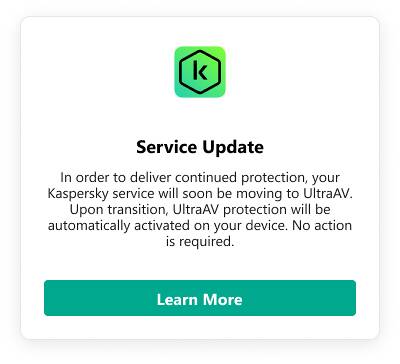
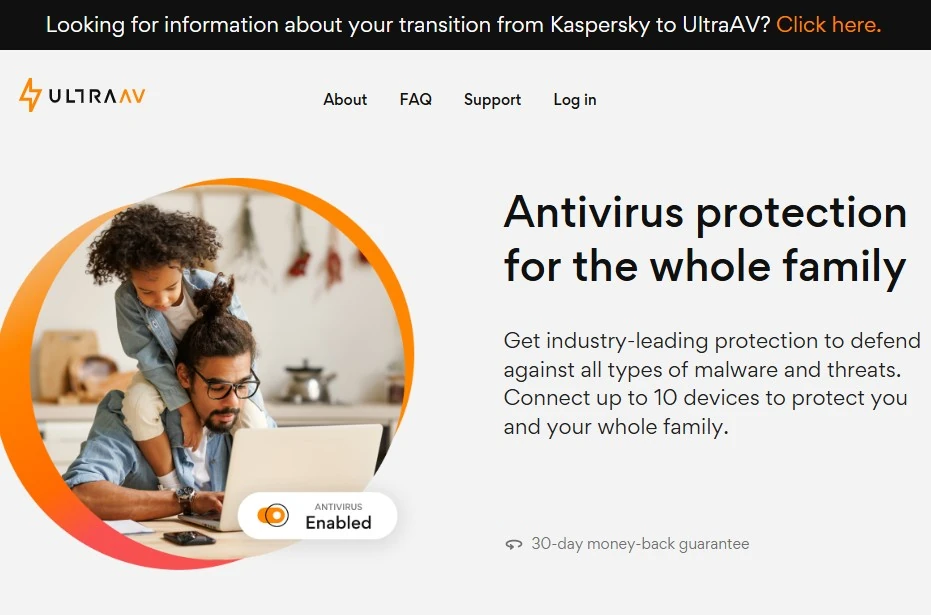
That transition does not make UltraAV a Kaspersky rebrand or the same legal company. UltraAV states that the two companies are not legally related and describes the arrangement as a strategic partnership for continued service to US Kaspersky customers.[2] The automatic change surprised many users, but an unwanted or unexpected installation is not by itself proof of malware.
Is UltraAV Safe to Use?
UltraAV is a commercial antivirus product, not a virus. Whether you should keep it is a separate decision involving consent, product behavior, subscription terms, performance, and privacy expectations. If you did not knowingly choose it or no longer want it, use the supported uninstall process above. If you keep it, review its current privacy and subscription terms directly rather than assuming they are identical to Kaspersky’s.
UltraVPN is also separate from the antivirus. A VPN routes network traffic through the provider’s infrastructure, so read the provider’s current logging and privacy terms before deciding whether to keep it. Our VPN guide explains the basic security and privacy trade-offs.
References
- UltraAV Support Center. “How do I uninstall Ultra Antivirus on Windows?” Ultra Antivirus, updated February 25, 2025; accessed July 24, 2026. Official Windows uninstall instructions.
- UltraAV Support Center. “How are Kaspersky Labs and Ultra Antivirus related?” Ultra Antivirus, updated December 6, 2024; accessed July 24, 2026. Official relationship statement.
- Microsoft. “Protect my PC from viruses.” Microsoft Support, accessed July 24, 2026. Antivirus removal and replacement guidance.
- US Department of Commerce. “Final Determination: Case No. ICTS-2021-002, Kaspersky Lab, Inc.” Federal Register, June 24, 2024; accessed July 24, 2026. Final determination.