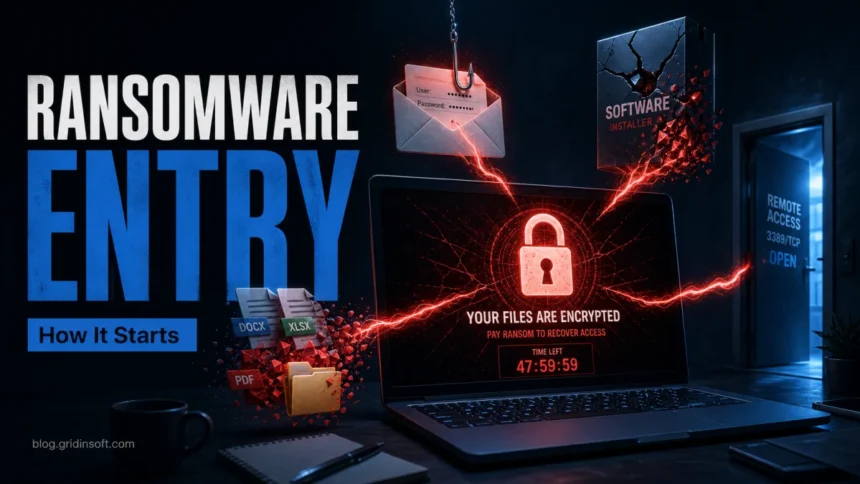
Ransomware usually infects a PC after one entry point gives attackers a foothold: a phishing message, a fake login page, stolen remote-access credentials, a cracked installer, a malicious document, a compromised website, or an unpatched app. In 2026, the important change is that many attacks no longer begin with a dramatic exploit. Attackers often log in through exposed RDP, VPN, or remote-management tools, then steal data or deploy encryption later.
If you are already seeing renamed files, a ransom note, blocked documents, or an antivirus alert after opening a download, treat the device as active-risk. Disconnect it from Wi-Fi/Ethernet, do not keep testing random files, save the ransom note for evidence, scan the system, and restore only from backups that were not connected during the incident.
For a wider view of the latest victim counts, dominant groups, and response decisions, use the companion ransomware facts and trends 2026 guide.
What victims usually search for
People usually find this topic after something has already happened, not while casually reading about cybersecurity. The common searches are practical and urgent:
- How did ransomware get on my computer?
- Can ransomware come from a PDF, Word document, or email attachment?
- Can cracked software or a keygen install ransomware?
- Can ransomware spread through RDP, VPN, or a shared drive?
- What should I do first if files are encrypted?
- Should I pay the ransom?
The useful answer is not just a list of attack vectors. You need to identify the likely entry point so you can close it before recovering files. Otherwise the same attacker may return through the same password, exposed service, or infected installer.
Main ransomware entry points in 2026
1. Phishing emails, fake invoices, and fake login pages
Phishing is still one of the easiest ways to start a ransomware chain. The first message may look like a delivery notice, tax document, invoice, shared file, cloud-storage alert, HR message, or security warning. The attachment or link may install malware directly, steal a password, or drop a loader that later brings in ransomware.
Microsoft lists spam emails and malicious Office macros among common malware infection paths, and warns users not to open unexpected attachments or enable document content unless they know exactly what it does [1]. For home users, the warning sign is usually urgency: the message pushes you to open a file, verify an account, cancel a charge, or sign in immediately.
2. Stolen credentials and exposed remote access
Remote access is now one of the most important ransomware entry points for businesses and many small offices. If RDP, VPN, or an RMM tool is exposed to the internet, attackers may not need a new exploit. They can try leaked passwords, reused passwords, weak MFA, or previously stolen credentials.
Arctic Wolf’s 2026 incident-response report says 65% of non-BEC intrusions came from abuse of remote access technologies such as RDP, VPN, and RMM tools, and describes the broader pattern as attackers “logging in instead of breaking in” [3]. That is why changing only the infected PC is not enough after a remote-access ransomware event. You also need credential rotation, MFA review, remote-access logs, and exposed-service cleanup.
3. Cracked software, keygens, torrents, and unofficial installers
Cracked software is a high-risk infection path because the user expects security warnings, patchers, packed files, password-protected archives, and unsigned executables. Attackers abuse that expectation. A fake activator can install a loader, disable protection, or run ransomware with the same permissions the user granted to the installer.
Microsoft warns that malware can be bundled with software from third-party sites or peer-to-peer networks, and notes that keygen-style programs often install malware at the same time [1]. If ransomware appeared soon after a crack, trainer, mod, activator, or pirated installer, assume that package is the likely source.
4. Fake updates, fake CAPTCHA fixes, and malicious repair prompts
Modern social engineering often looks like a browser or website problem: a fake browser update, fake security verification, fake CAPTCHA, fake video codec, fake VPN/tool installer, or fake “fix this connection” prompt. The page may instruct the user to download a file or run a command. That is enough to start the infection chain.
This route is especially dangerous because it targets people who are trying to solve a problem. If a website tells you to paste a command into Run, PowerShell, Terminal, or Command Prompt, treat it as suspicious. Legitimate websites do not need you to run a mystery command to prove you are human.
5. Compromised websites, malicious ads, and unpatched software
A malicious or compromised site can exploit browser, plugin, or application vulnerabilities, especially on systems that have not been updated. The user may not realize anything happened until a loader or follow-up payload starts running.
Keep Windows, browsers, Office apps, PDF readers, archivers, and browser extensions updated. Remove software you do not use. Microsoft specifically calls out hacked webpages and known software vulnerabilities as malware infection paths [1].
6. Removable drives, shared folders, and network spread
Some ransomware incidents begin on one endpoint but damage more data because the infected account can write to external drives, NAS shares, mapped network drives, or shared folders. A home user may notice an external backup drive being encrypted. A business may see shared project folders renamed or locked.
Backups should not stay permanently writable from the same Windows account you use every day. Keep at least one offline or versioned backup that ransomware cannot overwrite.
What to do first if ransomware may already be running
- Disconnect the device from the network. Turn off Wi-Fi, unplug Ethernet, and disconnect VPN. This helps limit access to shared drives and other devices.
- Do not pay immediately. Microsoft warns that paying does not guarantee access to your PC or files [2]. Payment can also mark you as a willing target.
- Preserve evidence. Photograph or save the ransom note, file extension, payment address, suspicious download name, email subject, and any security alerts.
- Scan before recovery. Run Windows Security or another trusted scanner. If you need a second opinion, use Gridinsoft Anti-Malware to check whether a loader, stealer, or persistence component remains.
- Reset passwords from a clean device. Start with email, Microsoft/Google accounts, VPN/RDP/RMM accounts, password managers, and financial accounts.
- Restore from clean backups only. Do not reconnect backups until the system is cleaned and the entry point is closed.
Entry point clues and what to close
| Clue | Likely entry point and fix |
|---|---|
| Files locked after opening an email attachment | Phishing or malicious document. Preserve the email, block sender/domain, scan the PC, and check whether account credentials were stolen. |
| Infection after a crack, keygen, mod, trainer, or torrent | Bundled malware. Delete the package, scan the PC, remove persistence, and avoid reusing the same installer on another device. |
| Shared folders or NAS files encrypted | Compromised account or infected endpoint with write access. Disable the account, check logs, rotate passwords, and restore from versioned backups. |
| Attack happened overnight on a work PC or server | Remote access abuse through RDP, VPN, or RMM. Review logs, enforce MFA, close exposed ports, rotate credentials, and restrict access by VPN/IP policy. |
| Browser page asked you to run a command or install an update | Fake update or fake verification prompt. Close the site, do not rerun the command, scan for droppers, and check downloads/startup items. |
How to reduce the chance of reinfection
- Use a standard user account for daily work, not an administrator account.
- Keep Windows, browsers, Office, PDF readers, archivers, and extensions updated.
- Do not install cracked software, keygens, fake updates, or unknown browser extensions.
- Turn on MFA for email, cloud storage, VPN, RDP gateways, and remote-management tools.
- Do not expose RDP directly to the internet. Use VPN, network-level authentication, and IP restrictions where remote access is necessary.
- Keep at least one backup offline or protected by versioning.
- Use real-time protection and scan suspicious files before opening them.
For broader ransomware hardening, see our ransomware protection guide. If remote desktop is part of your setup, also review our guide to securing RDP.
What changed since the old ransomware playbook
The old advice focused heavily on malicious attachments, torrents, and exploit kits. Those still matter, but ransomware operators increasingly care about identity and access. They steal credentials, buy access, abuse remote-management tools, and sometimes focus on data theft before encryption. Arctic Wolf reported that data-only extortion incidents jumped 11x year over year in its 2026 report, while ransomware, BEC, and data incidents dominated incident-response work [3].
That means prevention is not only about blocking a malicious file. It is also about protecting accounts, remote access, backups, and recovery paths. If the attacker can log back in after cleanup, the ransomware problem is not solved.
FAQ
Can ransomware infect a computer just by opening an email?
Usually the infection starts when the user opens a malicious attachment, enables document content, clicks a harmful link, or signs in on a fake page. Reading a normal email in a patched client is less risky than opening its attachment or following its instructions.
Can a PDF or Word document cause ransomware?
Yes, a document can be part of the chain if it exploits a vulnerability, uses malicious macros/scripts, or tricks you into downloading another file. Keep Office/PDF software updated and do not enable macros for unexpected documents.
Can ransomware spread to external drives?
Yes. If the infected user account can write to an external drive, NAS, or mapped network share, ransomware may encrypt files there too. Disconnect backups when they are not in use and keep versioned or offline copies.
Should I pay the ransom?
Paying is risky because there is no guarantee you will get working recovery keys or that stolen data will be deleted. Preserve evidence, report the incident where appropriate, clean the system, close the entry point, and restore from clean backups whenever possible.
How do I find the entry point?
Work backward from the first symptom: recent downloads, email attachments, fake update pages, new remote logins, failed RDP/VPN attempts, disabled security tools, and files created just before encryption. The entry point matters because recovery without closing it can lead to reinfection.
References
- Microsoft Support. “How malware can infect your PC.” Microsoft, accessed June 7, 2026. https://support.microsoft.com/en-us/security/how-malware-can-infect-your-pc
- Microsoft Support. “Protect your PC from ransomware.” Microsoft, accessed June 7, 2026. https://support.microsoft.com/en-us/security/protect-your-pc-from-ransomware
- Arctic Wolf. “2026 Threat Report Highlights 11x Growth in Data Extortion Incidents and Continued Dominance of Ransomware.” Arctic Wolf, February 17, 2026, accessed June 7, 2026. https://arcticwolf.com/resources/press-releases/arctic-wolf-threat-report-highlights-11x-growth-in-data-extortion-incidents-and-continued-dominance-of-ransomware/