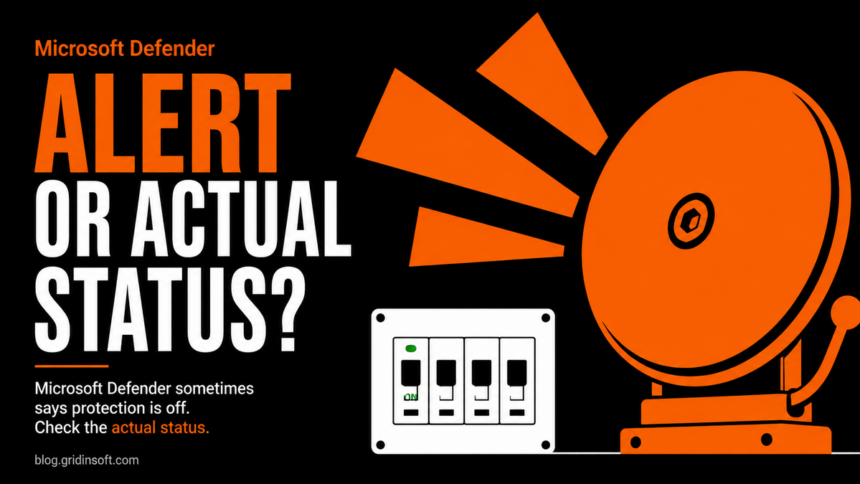
“Microsoft Defender Antivirus is turned off” can be a false notification, but check the protection state before dismissing it. Microsoft confirmed an issue on August 28 in which the message appears despite Defender remaining active. As checked on September 7, the company still lists a future Defender update as the planned resolution. [1]
The useful distinction is between the notification and the antivirus state behind it. Do not switch off protection, remove security updates or apply a registry “fix” just to make the notification disappear.
First, open Windows Security yourself
Use the Start menu to open Windows Security, then inspect Virus & threat protection. Check which antivirus provider is responsible for protection and whether it reports an issue. A message inside a browser webpage is not a trustworthy reading of Windows Security; close the page and use the installed Windows interface.
For the documented bug, Microsoft says notifications can appear at startup and intermittently afterward, including when notifications are disabled. It can affect Windows and Windows Server with current Defender updates, rather than only the Windows 11 release whose health page hosts the notice. [1]
Record Defender’s status without changing settings
Open Windows PowerShell and run the following read-only command. On a managed computer, follow your organization’s rules for running administrative tools; send the notification and observed status to IT if access is restricted.
Get-MpComputerStatus
This Microsoft cmdlet reports the antimalware state. Look for AMRunningMode, AMServiceEnabled, AntivirusEnabled and RealTimeProtectionEnabled. Also record the product version and signature update time so that a later comparison uses the same evidence. [2]
What you find — How to interpret it
- Defender is the intended active antivirus; its service, antivirus and real-time fields are True: These observations support the false-notification explanation. Keep updates enabled and watch for an official resolution.
- A different antivirus is the active provider: Check that provider’s own status. A Defender value must be interpreted in the context of which product is meant to protect the device.
- Protection is actually disabled, the service fails or a status command errors: Do not label the case as the known notification bug. Investigate the provider, service or policy problem, or give the evidence to IT.
- A real malware detection or unfamiliar security change also appears: Preserve the detection details and investigate that event separately. The false-toast notice does not invalidate other alerts.
A successful status check is not a full malware assessment
Enabled fields tell you about protection components at the time of the check. They do not prove that every file is harmless or that no account was previously compromised. Equally, a single false value does not identify malware as the cause: configuration and another active security product can affect the result.
If the separate problem is that a scan stops immediately, use the Defender full-scan troubleshooting guide. A scan failure has different evidence and next steps from a notification that contradicts an otherwise working antivirus.
Keep a short record, then avoid repeated “repairs”
Save the approximate notification time, installed Windows version, intended antivirus provider and relevant status fields. If protection remains active and there is no separate incident, periodically check Microsoft’s notice and install normal Defender updates. There is no confirmed fix version in the notice reviewed for this article.
If an administrator investigates, share the relevant fields rather than dumping an entire system report publicly. If the status later changes, preserve both observations; do not erase logs or reset security services before the difference has been understood. The goal is to resolve a real failure when one exists while leaving working protection in place.
References
- Microsoft. Incorrect notifications that Microsoft Defender Antivirus is turned off. Issue updated August 28, 2026; checked September 7.
- Microsoft Learn. Get-MpComputerStatus reference. Accessed September 7, 2026.