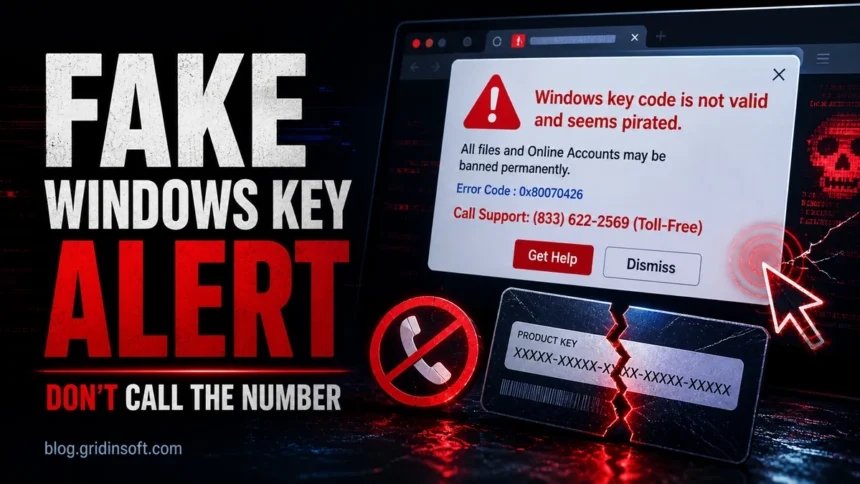
This browser warning is a fake tech support alert, not a real Windows activation notice. If the page says Windows Key Code Is Not Valid And Seems Pirated, do not call the phone number, do not click “Get Help”, and do not allow remote access. Exit full-screen mode, close the browser tab or browser process, then check the browser and the PC for adware, notification abuse, suspicious extensions, or bundled software that may have opened the scam page.
What this fake Windows key alert means
The message claims that your Windows key is invalid, your PC is blocked, and a banking trojan was found. Those claims are designed to create panic. Microsoft does not verify Windows licensing through a random browser page, and a legitimate Windows or Microsoft Defender warning will not tell you to call a toll-free number shown inside a web pop-up.
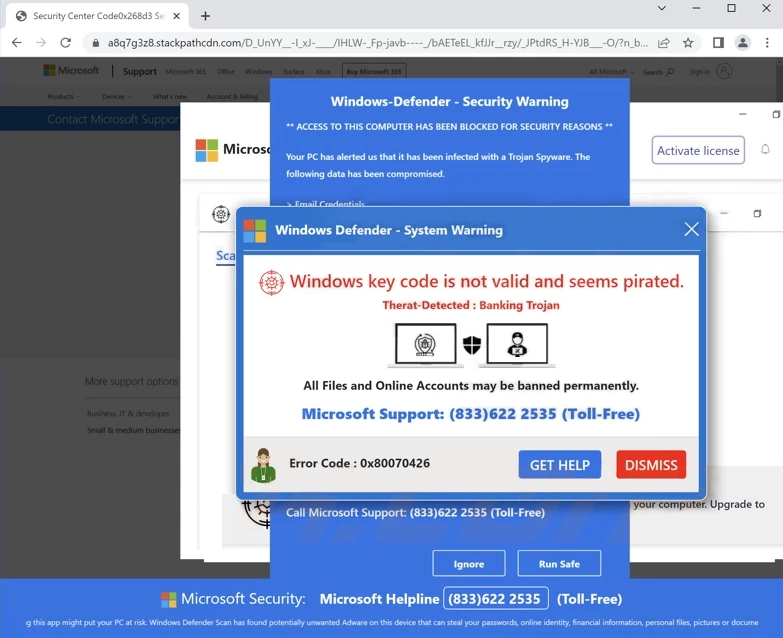
The wording usually combines several scare tactics at once: “Windows key code is not valid”, “Trojan spyware alert”, “access to this PC has been blocked”, and “all files and online accounts may be banned permanently”. This is why the page feels more urgent than a normal browser warning. The goal is to keep you on the page long enough to call the fake support number.
Why competitors rank above this page right now
The current search results reward pages that answer the exact alert quickly and then give a recovery checklist. PCRisk, for example, leads with a threat summary, fake phone numbers, symptoms, distribution methods, and what can happen after a call. Other results target the broader “pirated Windows software detected” and “fake Microsoft support pop-up” intent. The weak point in many competing pages is that they often push their own scanner before explaining what to do if the victim already called, paid, or installed remote-access software.
This page is now focused on the missing practical lane: close the fake full-screen alert first, remove the browser/adware cause, and follow a damage-control checklist if the scammer touched the PC.
Scam text and warning signs
The exact wording varies, but this campaign often uses text like this:
Windows Key Code Is Not Valid And Seems Pirated
Trojan Spyware Alert – Error Code: #0x268d3
Access to this PC has been blocked for security reasons.
Threat Detected – Trojan Spyware
Windows Defender Scan has found potentially unwanted Adware on this device.
Call Microsoft Support immediately to report this threat, prevent identity theft and unlock access to this device.
Treat the page as fake when you see any of these signals:
- It appears inside Chrome, Edge, Firefox, or another browser instead of Windows Settings or Windows Security.
- It shows a phone number and pressures you to call immediately.
- It claims your Windows registration, bank logins, Facebook account, documents, or photos will be suspended.
- It blocks normal navigation by using full-screen mode, repeated dialogs, or audio warnings.
- It asks you to install AnyDesk, UltraViewer, TeamViewer, a “support client”, or another remote-access tool.
Why the scam is dangerous
The web page itself is usually social engineering. The bigger danger begins after a victim calls the number. Microsoft warns that tech support scammers use fake pop-ups and phone numbers to get people to click links, share personal information, pay for fake services, or let strangers connect to the PC remotely.
The FBI’s 2025 IC3 Annual Report shows why this still matters in 2026: tech support fraud was one of the top cyber-enabled fraud categories, with 47,794 complaints and more than $2.13 billion in reported losses. A fake Windows key warning is one of the simple entry points into that larger scam pattern.
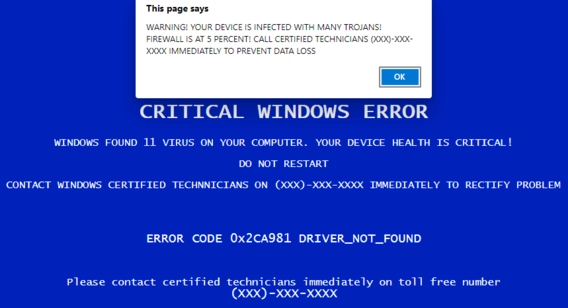
If the scammer gets remote access, they may pretend to run diagnostics, show harmless Windows logs as “proof” of infection, install unwanted security software, steal browser passwords, open banking pages while watching the session, or demand payment by card, gift card, wire transfer, or cryptocurrency.
How the fake alert got into your browser
The pop-up usually appears after one of these triggers:
- A malicious ad or redirect on a compromised or low-quality site.
- Browser notifications previously allowed from an unsafe site.
- An adware or browser-hijacker extension changing search, start page, or new-tab behavior.
- Bundled software installed with cracks, fake updates, free media tools, or download managers.
- A browser session restored after the scam tab was left open.
The page can look like it is blocking the PC, but it is normally just a browser tab using full-screen mode and aggressive scripts. That distinction matters: closing the tab and cleaning the browser often solves the immediate lock-screen effect.
What to do right now
1. Do not call the number
Do not call the “Microsoft Support” number shown on the page. Do not click buttons inside the fake alert. Do not enter your name, email, phone number, product key, Microsoft account password, or payment details.
2. Exit full-screen mode and close the tab
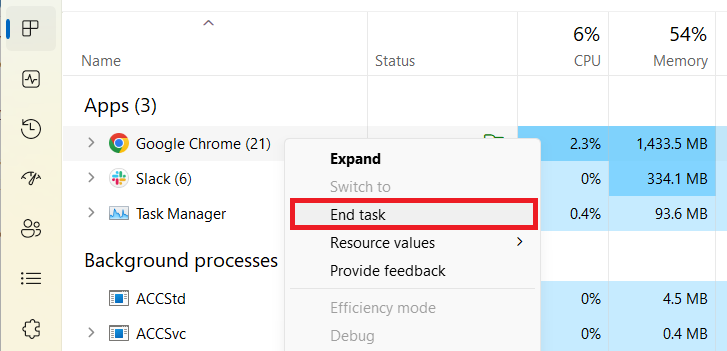
Press Esc or F11 to leave full-screen mode. If the page keeps looping alerts, press Ctrl+Shift+Esc, open Task Manager, select the browser, and choose End task. Reopen the browser without restoring the previous session if it asks.
3. Remove notification permissions and suspicious extensions
Open your browser settings and review site notifications. Remove unknown sites from the “Allowed” list, especially sites that recently started showing security warnings, giveaways, adult content, streaming prompts, fake update messages, or “click allow to continue” pages. Then remove extensions you do not recognize or no longer use.
4. Scan the PC for adware and unwanted apps
If the alert returns, if your search engine changed, or if ads appear on normal websites, scan the system for adware, browser hijackers, and potentially unwanted applications. Gridinsoft Anti-Malware can check startup entries, browser leftovers, suspicious downloads, and unwanted programs that commonly reopen scam pages.
After uninstalling the suspicious app or deleting the visible threat, use Gridinsoft Anti-Malware to check hidden files, startup entries, scheduled tasks, bundled apps, browser changes, and other persistence points that can restore malware.
Download Anti-Malware5. Reset browser settings if the page comes back
Resetting the browser can remove changed start pages, search providers, pinned tabs, and extension leftovers. Save important passwords and bookmarks first, then reset Chrome, Edge, or Firefox from its settings page. After the reset, install extensions again only from official stores and only when you recognize the publisher.
If you already called or allowed remote access
Use this checklist if you spoke with the fake support operator, installed remote-access software, or paid for “repair” services:
- Disconnect from the internet and close the remote-access program.
- Uninstall remote tools the scammer asked you to install.
- From a clean device, change your Microsoft account, email, banking, and password-manager passwords.
- Enable multi-factor authentication where available.
- Call your bank or card issuer if you shared payment details or opened banking pages during the session.
- Run a full malware scan and review startup apps, browser extensions, and recently installed programs.
- Report the scam to Microsoft, the FTC, or IC3 if money, identity data, or account access was involved.
How to tell it apart from a real Windows activation issue
A real Windows activation problem appears in Settings -> System -> Activation or through Windows system notifications. It does not arrive as a web page with a support phone number. Real activation errors use Microsoft account, digital license, product-key, or edition-mismatch language. They do not claim that Facebook, banking passwords, photos, or documents will be banned.
If you are worried about your license, close the browser warning first and check activation status from Windows Settings. If Windows says it is not activated, use Microsoft account recovery, a genuine product key, or the official Microsoft Store path. Do not use KMS cracks or activators; those tools are a common source of malware, unwanted changes, and future security warnings.
FAQ
Is “Windows Key Code Is Not Valid And Seems Pirated” a real Microsoft alert?
No. It is a fake browser-based tech support scam. Real Microsoft and Windows activation messages do not ask you to call a phone number from a web pop-up.
Can the pop-up itself infect my PC?
The page is mainly a scam, but the redirect that opened it may come from adware, unsafe ads, or browser notification abuse. The risk becomes much higher if you download software, call the number, or allow remote access.
Why does it keep coming back after I close it?
The browser may be restoring the old session, a site may still have notification permission, or an extension/adware component may be reopening scam pages. Remove notification permissions, check extensions, and scan the PC.
What if I paid the fake support team?
Contact your bank or card issuer immediately, preserve receipts and phone numbers, change passwords from a clean device, and report the incident. If remote access was used, scan the PC before using it for banking again.
References
- Microsoft Support. “Protect yourself from tech support scams.” Microsoft, accessed June 7, 2026. https://support.microsoft.com/en-us/windows/protect-yourself-from-tech-support-scams-2ebf91bd-f94c-2a8a-e541-f5c800d18435
- Federal Trade Commission. “How To Spot, Avoid, and Report Tech Support Scams.” FTC Consumer Advice, accessed June 7, 2026. https://consumer.ftc.gov/articles/how-spot-avoid-and-report-tech-support-scams
- Federal Bureau of Investigation, Internet Crime Complaint Center. “2025 IC3 Annual Report.” IC3, 2026. https://www.ic3.gov/AnnualReport/Reports/2025_IC3Report.pdf