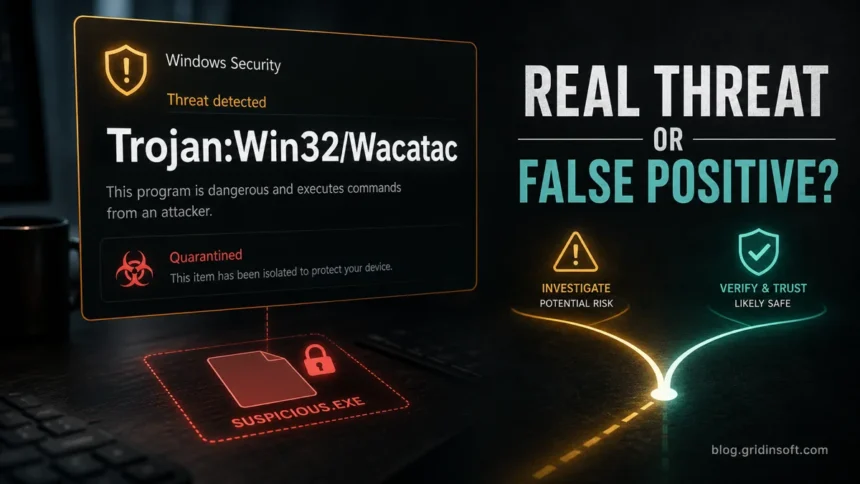
Trojan:Win32/Wacatac is a Microsoft Defender detection family for suspicious Windows files, droppers, and loader-like behavior—not one specific program. Keep the affected file quarantined while you verify its path and source. Treat downloads from cracks, fake updates, email attachments, unknown archives, or files that return after reboot as malware. A trusted signed build can be a false positive, but verify it before restoring the file.
What to do first when Defender shows Wacatac
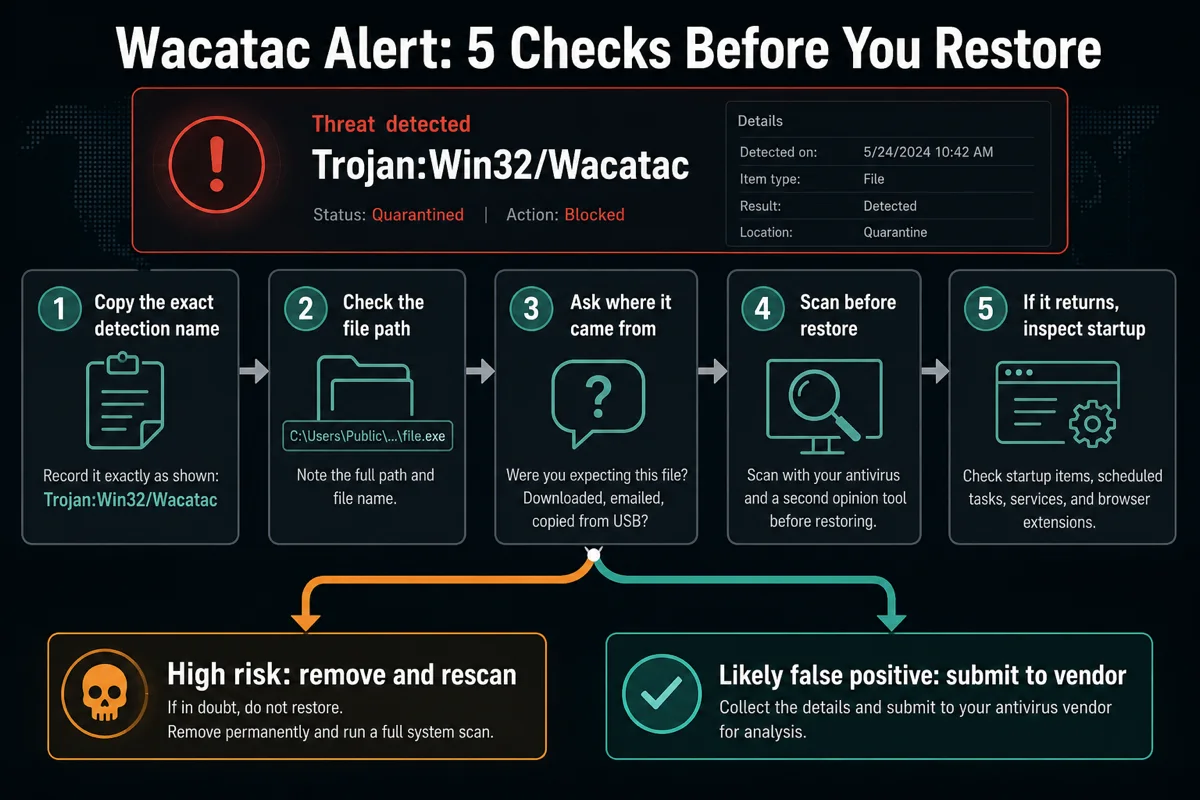
- Open Windows Security and copy the exact detection name and affected item path.
- Quarantine or remove the file; do not restore it just to test it.
- Check whether the file came from a crack, fake update, email attachment, archive, or unknown download.
- Run a full system scan and a second-opinion scan before trusting the computer again.
- If the alert returns after reboot, inspect startup entries, scheduled tasks, browser extensions, and recently installed apps.
If Defender blocked Wacatac once and the file never ran, quarantine plus deleting the source may be enough. Scan when the alert returns, the file ran, or the source was a crack, archive, fake update, or unknown download; the goal is to find the downloader, scheduled task, extension, hidden copy, or bundled component that can recreate the file.
Wacatac Trojan: malware or false positive?
For broad searches like trojan wacatac or wacatac malware, the safest answer is conditional: Trojan:Win32/Wacatac should be handled as malware until the source and behavior prove otherwise. Microsoft uses the Wacatac name for detections associated with trojans and droppers, so a random file in Downloads, Temp, AppData, or an extracted archive deserves quarantine and a full cleanup check.
What you see — Risk and next step
- File came from a crack, keygen, game mod, fake update, email attachment, or unknown archive — High risk. Leave it quarantined, remove related files, and run a full scan.
- Detection path is in
Downloads,Temp,AppData, a random folder, or a mounted archive — Check the source and full affected-item path. These folders also hold legitimate files; location alone does not establish malware or persistence. Keep an unverified file quarantined and scan before restoring it. - File is a signed vendor utility, internal build, hardware tool, or newly compiled app from a trusted source — Possible false positive. Keep it isolated while you verify the signature and submit it to Microsoft if needed.
- Defender says remediation is incomplete, or the same alert appears after reboot — Expand the event and follow any unfinished action. Compare its timestamp and affected path with the earlier alert. Investigate scheduled tasks, startup apps, services, browser extensions, and recent installers if a fresh detection or recreated file shows continuing activity.
What does Trojan:Win32/Wacatac mean?
Trojan:Win32/Wacatac is not one single file name. It is a Microsoft Defender family label for suspicious Windows executables, droppers, packed files, and loader-like behavior. The Win32 part means the detection is for Windows executable activity; Wacatac is the family name; extra suffixes such as !ml, .H!ml, or a separate Script platform can point to a narrower variant or machine-learning classification.
If your alert says only Trojan:Win32/Wacatac, stay on this page. If the alert gives a more exact label, use the exact page when available because the false-positive and source checks can differ. If the executable is WiiUDownloader and Defender names Wacatac.B!ml, use the WiiUDownloader false-positive scan and restore checklist before allowing the file.
Exact alert label — Best Gridinsoft guide
Trojan:Win32/Wacatac— This broad Wacatac family guide for removal and false-positive triage.Trojan:Win32/Wacatac.H!ml— Trojan:Win32/Wacatac.H!ml guide for machine-learning detection checks.Trojan:Win32/Wacatac.B!mlorTrojan:Script/Wacatac.B!ml— Wacatac.B!ml file checks and repeat-alert guide for either label, including executables, scripts, archives, and browser-cache detections.- Another Defender label you do not recognize — Use the Microsoft Defender detections guide to decode the platform, family, and suffix before restoring the file.
Where Wacatac alerts usually come from
Most real Wacatac cases begin with a file the user did not get from a clean vendor source. That does not prove every Wacatac alert is malicious, but it gives you the first risk signal to check.
- Cracked software, keygens, and patched installers. These often use packers and loaders that trigger trojan detections, and they may install additional payloads after launch.
- Fake browser or driver updates. A fake update page can drop an executable that looks like a repair tool, codec, driver, or security update.
- Email attachments and invoice lures. Archive files, ISO images, scripts, and shortcut files can lead to a hidden executable.
- Game mods and unofficial launchers. If the source is a forum mirror, Discord attachment, Telegram channel, or reupload site, treat it as untrusted.
- Leftover files after partial removal. Defender may quarantine one file while a scheduled task, startup entry, or browser extension keeps recreating it.
How to remove Trojan:Win32/Wacatac safely
Do the removal in an order that preserves evidence and avoids accidentally running the suspicious file again.
- Open Protection history. In Windows Security, note the threat name, affected item path, detection time, and action status.
- Keep the file quarantined. Do not restore it unless you already confirmed it is a trusted false positive.
- Update security intelligence. Run Windows Update or update Microsoft Defender definitions before a full scan.
- Run a full scan. If the alert returns, use Microsoft Defender Offline to scan before Windows fully loads.
- Run a second-opinion scan. Gridinsoft Anti-Malware can check remaining files, startup entries, browser changes, and bundled components that may not share the exact same detection name.
- Inspect persistence. Review Task Scheduler, Startup Apps, services, browser extensions, notification permissions, proxy settings, and recently installed apps.
- Change passwords only when exposure is plausible. If you ran the file, saw browser redirects, found unknown network activity, or suspect an infostealer, change passwords from a clean device and revoke unknown sessions.
If Wacatac keeps returning, Defender may be catching the recreated file rather than the source. Scan for the downloader, scheduled task, browser extension, or bundled component before adding exclusions or restoring anything.
Check for the downloader, scheduled task, extension, hidden copy, or bundled component that can recreate the file Defender already blocked.
Find what keeps recreating WacatacIf Wacatac keeps coming back
First compare the detection time, full affected-item path, and action status with the earlier event. An old Protection history card is different from a fresh detection. If the timestamp is unchanged, the affected file is gone, and updated scans find nothing new, you may be looking at the earlier record. Do not restore the file or clear the history just to make that record disappear.
A new timestamp means Defender detected something again, but it does not by itself show that the file ran. The same archive or browser-cache item may be rescanned. If the file reappears after removal, changes location, or returns after reboot without another download, investigate what writes it: a downloader, scheduled task, startup entry, extension, or bundled component. Remediation incomplete means cleaning did not finish; expand the card for the outstanding action before deciding which of these cases applies.
If the affected item is PowerShell and the event repeats with hidden or encoded arguments, follow our Commando.A!ml PowerShell investigation guide; deleting or excluding powershell.exe does not remove the launcher.
- Delete or move the original archive, installer, ISO, or torrent folder after you decide it is unsafe.
- In Task Scheduler, inspect the action, arguments, trigger, and target file of unfamiliar tasks, including ones running from
Temp,AppData,Downloads, or random-looking folders. Record the details first; disable or remove an entry only when you connect it to the unwanted file or activity. Legitimate updaters also use these folders. - Check Startup Apps and the common Run keys for entries you did not install intentionally.
- Review browser extensions and notification permissions if the first suspicious file came from a redirect or fake update page.
- After cleanup, reboot and scan again. Compare new event times and affected paths with your notes. An unchanged historical record calls for a different follow-up from a newly detected or recreated file.
When it may be a false positive
A false positive is more likely when the file is a known signed vendor utility, a new internal build, a hardware-monitoring tool, or software you compiled yourself. Even then, do not restore it blindly. Check the publisher signature, hash, folder path, source URL, and whether other tools flag the same file. If you believe Defender is wrong, submit the file through Microsoft Security Intelligence instead of sharing private documents or business files on public scanning sites.
What not to do after a Wacatac alert
- Do not add a Defender exclusion for the detected path just because you want the program to run.
- Do not restore a file from a crack, keygen, game mod, or fake update page.
- Do not follow random registry-deletion instructions without knowing which persistence entry you are removing.
- Do not assume the computer is clean only because the popup disappeared once.
- Do not upload sensitive files, client documents, password databases, or private business tools to public scanners.
FAQ
Is Trojan:Win32/Wacatac always a virus?
No detection name is perfect, but Trojan:Win32/Wacatac is serious enough to treat as malware until you verify the exact file source, signature, path, and scan results. False positives are possible, but they should be proven while the file stays isolated.
Can Wacatac steal passwords?
Some trojans and droppers can lead to credential theft, browser data theft, or additional malware. If you executed the file or saw browser redirects, unknown network activity, or new startup entries, change important passwords from a clean device.
Why does Wacatac keep appearing after removal?
Compare the event time and affected path first: you may be seeing an old history record or a new scan of a leftover archive or cache. If the file is actually recreated after removal, investigate the installer, scheduled task, startup entry, extension, or downloader that writes it. Keep the item quarantined while you identify the source.
Should I restore a Wacatac file if I need the program?
Only restore it after you confirm the source is trusted, the file is signed or otherwise expected, a full scan is clean, and Microsoft or the vendor accepts it as a false positive. Do not restore cracked or unknown downloads.
Which guide should I use for Wacatac.B!ml?
This page covers the broader Wacatac family. Use the B!ml guide linked in the exact-alert table for either Trojan:Win32/Wacatac.B!ml or Trojan:Script/Wacatac.B!ml. Copy the complete alert and affected item; inspect the actual file, archive, or cache involved rather than choosing a different guide solely from the platform spelling.
References
- Microsoft Security Intelligence. “Trojan:Win32/Wacatac.A threat description.” Microsoft, accessed June 11, 2026. https://www.microsoft.com/en-us/wdsi/threats/malware-encyclopedia-description?Name=Trojan%3AWin32%2FWacatac.A
- Microsoft Support. “Virus and threat protection in the Windows Security app.” Microsoft, accessed June 11, 2026. https://support.microsoft.com/en-us/windows/virus-and-threat-protection-in-the-windows-security-app
- Microsoft Security Intelligence. “Submit files for malware analysis.” Microsoft, accessed June 11, 2026. https://www.microsoft.com/en-us/wdsi/filesubmission