Smartphone security starts with five habits: keep software updated, use a strong screen lock, protect accounts with multi-factor authentication, verify app downloads, and check the networks you join. These steps help protect the messages, photos, banking access and work accounts you carry on your phone.
Loss or theft is a separate risk from malware. Someone holding an unlocked phone, or one protected by a weak or known code, may access private information or signed-in apps. A strong lock limits casual access, but protect important accounts individually and know how to lock a lost phone through the platform’s official tools.
1. Install software updates and security patches
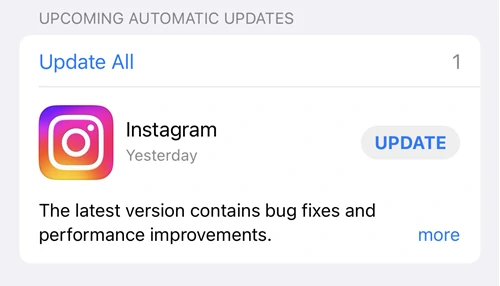
Install current Android or iOS updates through system Settings, and update apps through their store or verified publisher. Security patches fix the known issues addressed in that release; one update does not eliminate every possible vulnerability. Check for updates when setting up a phone, and do not ignore available security fixes. Browsers and other apps need updates as well as the operating system.
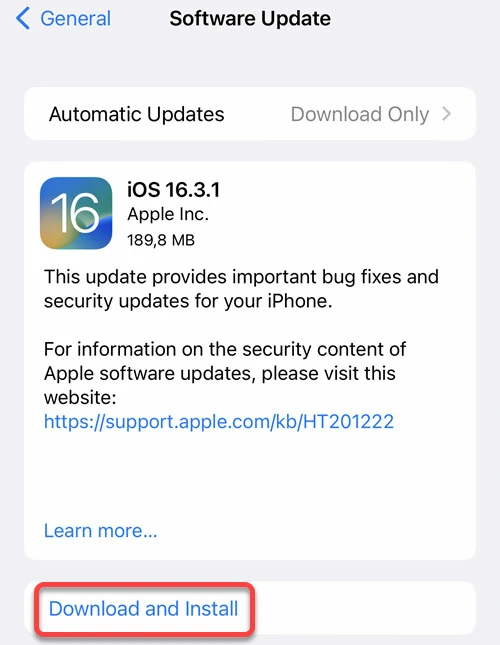
Update support depends on the exact device model and the manufacturer’s policy. Different models from the same brand may have different end dates. Check the manufacturer’s official support page for your model’s security-update end date or promised support period. If the phone no longer receives security fixes, plan its replacement before relying on it long term for sensitive work.
2. Use a strong PIN, password or biometric lock
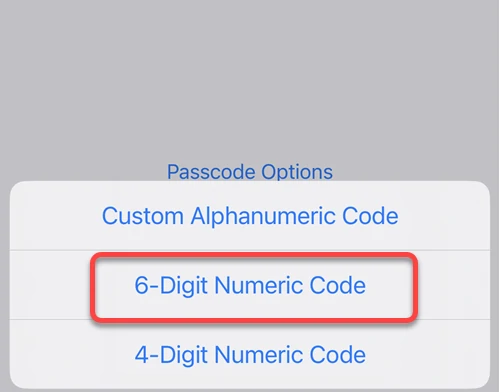
Set a strong PIN or password that is not a repeated sequence, birthday or code other people know. Enable fingerprint or face unlock if supported, and protect the backup PIN or password as well. Set a short automatic-lock timeout and keep the phone locked when unattended. An unlocked phone can give another person access to apps that are already signed in.
Protect banking, email and other important accounts with unique, secure passwords or passkeys. Do not reuse your device-unlock code as an account password. If the phone goes missing, use the platform’s official lost-device tools to lock it and review account sessions from another trusted device.
3. Use multi-factor authentication if possible
Weak or reused passwords put accounts at risk from guessing, brute-force attempts and credentials exposed elsewhere. A password that works alone can give an attacker access to messages, photos or account settings. Add verification beyond the password, starting with email and financial accounts, which often control recovery for other services.
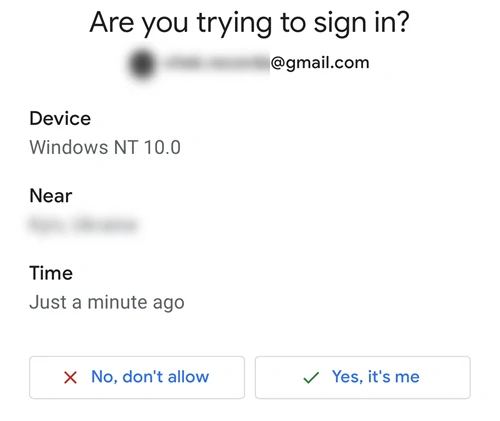
Even a strong password can be stolen through phishing or a breach. Turn on multi-factor authentication for important accounts and use a passkey or security key when supported. Never approve a sign-in you did not initiate or give a verification code to someone who contacts you. Protect your recovery email and keep recovery codes safe.
What should I do if I received a message?
If you receive an unexpected sign-in alert, open the service yourself rather than following the message’s link. Use a trusted device to change the affected password, review active sessions and reject prompts you did not initiate. A FIDO security key or phishing-resistant passkey strengthens sign-in protection, but it does not make the entire account immune: stolen sessions and weaker recovery paths can still matter [1]. Protecting the key is important; physical theft is not the only way an account can be abused.
iPhones running iOS 16.3 or later support security keys for Apple Account. Follow the account provider’s setup and recovery instructions, keep a backup key safe, and protect trusted signed-in devices. Stronger sign-in protection does not undo an account session that was already stolen.
4. Download applications and updates from trusted sources only
Start with Google Play on Android, the App Store on iPhone, or the publisher’s verified website when you have a reason to download directly. Legitimate free and open-source apps exist; price alone does not determine safety. Cracked or “premium unlocked” builds from unverified sites are higher risk because you cannot assume they contain the publisher’s original code.
Fake pages and ads can imitate well-known apps, banks and updaters. Check the exact publisher and destination instead of trusting a logo, search position or claim that a download is required. A trojan can look like a useful app while hiding harmful behavior; an unknown app does not become trustworthy simply because it launches normally. Our Android malware guide explains the warning signs.
Download apps with caution
Check the developer’s identity, recent reviews and requested permissions together. A calculator asking for SMS or Accessibility control needs a clear explanation tied to its features. Official stores and positive reviews are useful signals, but they are not guarantees: apps can change after updates and reviews can be misleading. Deny access the app does not need, and stop if a download asks you to disable Play Protect or ignore security warnings.
Attackers often email fake subscription notices or update prompts to push malicious downloads. An email is not by itself proof that an update is fake: Android’s official documentation describes legitimate website and email distribution [2]. Open the app store or the publisher’s website yourself, verify the developer and download source, and avoid unexpected APK attachments, pop-up updates or instructions to disable Play Protect.
Check an unexpected Android APK before installing it
If an email, message or download page sends you an APK, open Trojan Scanner for Android and choose Menu → Check a file → Choose file. Select the download without installing it. If it is flagged, leave it uninstalled and delete the unwanted file. If you already installed an unfamiliar app, update the threat database, tap Start, and review the installed-app findings before confirming removal of unwanted apps in Android. Our Android scan guide illustrates the steps.
5. Check public Wi-Fi before trusting it
Public Wi-Fi is not automatically unsafe, and another hotspot user cannot simply read properly encrypted HTTPS traffic. HTTPS protects the content sent between your browser and the website even on a shared network; plain HTTP does not. Check the address and never ignore a certificate or connection warning. Google explains how HTTPS prevents network eavesdroppers from reading information such as passwords in transit [3].
Verify the network name with the venue, avoid automatically joining unfamiliar hotspots, and keep your phone and browser updated. Do not enter a banking password or verification code into a hotspot login page. An encrypted connection also does not establish who operates the website: check that you are on the intended bank or service before signing in.
A VPN from a provider you trust can add network privacy, but it does not make a phishing page or malicious app safe. Use mobile data if you do not trust the hotspot, and keep the same source, permission and account checks whichever connection you choose.
References
- FIDO Alliance. “Passkeys: The Journey to Prevent Phishing Attacks. Part 3: Full Prevention.” March 2025, accessed October 16, 2026. FIDO authentication and remaining session risks.
- Google. “Alternative distribution options.” Android Developers, updated February 26, 2026, accessed October 16, 2026. Android app distribution.
- Emily Schechter. “A milestone for Chrome security: marking HTTP as ‘not secure’.” Google, July 24, 2018, accessed October 16, 2026. HTTPS and information in transit.