Coin miner malware, also called cryptomining malware or cryptojacking malware, uses your computer’s CPU or GPU to mine cryptocurrency for someone else. The owner of the malware gets the money. You get high CPU usage, fan noise, heat, slow programs, battery drain, and sometimes a damaged Windows setup. In 2026, some miner campaigns also hide behind fake utility downloads, poisoned search results, services such as Altisik Service, and remote-access tools, so cleanup has to check the installer source and persistence, not only the process that is visible in Task Manager.
How do I remove a coin miner virus?
- Disconnect from the internet if the computer is overheating or the CPU stays near 100% while idle.
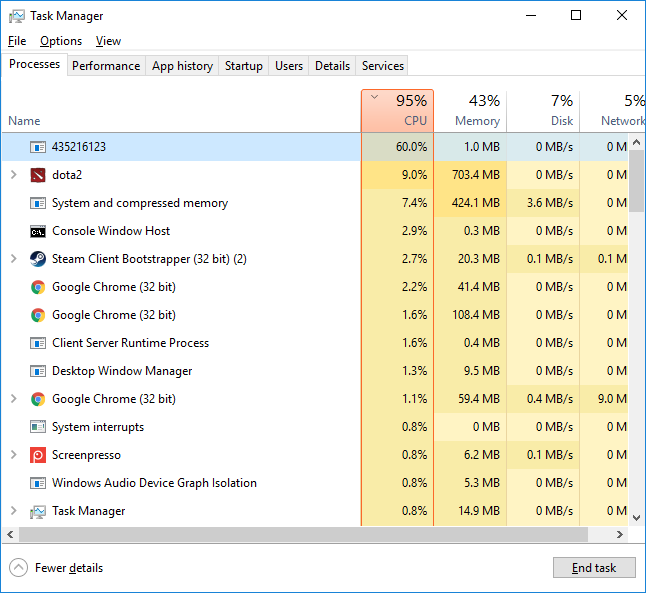
- Open Task Manager and look for unknown processes using high CPU/GPU, especially from Temp, AppData, ProgramData, or a cracked software folder.
- If usage drops as soon as you open Task Manager, or the miner returns after deletion, assume there is a loader, scheduled task, service, or remote-access component still present.
- Run a full scan with Microsoft Defender or another trusted scanner, then remove the source package that installed the miner.
- Check startup entries, scheduled tasks, browser extensions, Defender exclusions, and recently installed apps so the miner does not return after reboot.
| Threat name | Coin miner malware / cryptocurrency mining malware / cryptojacking |
| Main symptom | High CPU or GPU usage when the PC should be idle |
| Common sources | Cracked games, fake installers, poisoned search results, malicious browser extensions, bundled software, exposed RDP, pirated tools |
| Typical files | XMRig variants, random EXE names, scripts, scheduled tasks, PowerShell loaders |
| Best first action | Quarantine the detection, remove the installer/source folder, then scan persistence points |
What is coin miner malware?
Coin miner malware is software that runs cryptocurrency mining tasks without your informed consent. Many miners target Monero because it can be mined efficiently on normal CPUs and is harder to trace than Bitcoin. Some infections use a normal mining tool such as XMRig, but hide it behind a malicious installer, script, scheduled task, or fake system process.
The important detail is consent. Cryptocurrency mining software is not always illegal by itself. It becomes malware when it is installed secretly, bundled with another program, persists without permission, or keeps running after you try to remove it.
Coin miner malware symptoms
- CPU or GPU stays high while idle. Task Manager may show 70-100% usage with no heavy app open.
- CPU drops when you open Task Manager. Some miners pause or throttle when monitoring tools are opened, so compare idle usage over several minutes.
- Fans run constantly. Laptops may become noisy even on the desktop.
- Heat and battery drain. The system may throttle performance or shut down under load.
- Unknown processes. Names may look random, generic, or similar to Windows files.
- Slow browsing and games. The miner consumes resources needed by normal apps.
- Antivirus detects CoinMiner, XMRig, or HackTool. Do not restore it unless you intentionally installed a miner and fully understand the source.
How coin miners get installed
| Source | What happens | What to remove |
| Cracked software or games | Miner is bundled with the activator or repack | Activator, repack folder, extracted archive, startup task |
| Fake installer | Installer drops a miner and a loader | Recently installed app, Temp files, ProgramData folder |
| Poisoned search or fake utility site | A lookalike download page bundles a real-looking utility with a malicious DLL, loader, or remote-access tool | Downloaded ZIP, extracted folder, suspicious DLL, unauthorized remote-access client |
| Malicious extension | Browser runs scripts or injects pages | Unknown extension, notification permission, browser profile changes |
| Exposed RDP or weak password | Attacker logs in and installs miner manually | New users, remote-access tools, firewall/RDP settings |
| Script loader | PowerShell or scheduled task downloads miner again | Scheduled task, Run key, PowerShell command history |
Need the exact XMRig cleanup path? If Task Manager shows xmrig.exe or the miner returns after deletion, use the dedicated XMRig.exe virus removal guide for path checks, scheduled-task cleanup, service persistence, and false-positive decisions.
Gridinsoft telemetry also shows why one hash is not enough for current miner incidents: a polymorphic CoinMiner cluster on Chinese Windows systems reused random eight-character filenames while rotating payload hashes behind a stable launcher and redundant persistence.
Current coin miner tactics to check in 2026
Recent cryptojacking campaigns have moved beyond simple browser scripts and obvious CPU miners. Microsoft reported a 2026 campaign where victims were led from poisoned search results and, in observed cases, AI-assisted software recommendations to fake utility downloads. The infection chain abused trusted-looking installers, DLL sideloading, ScreenConnect remote access, Defender exclusions, and GPU-focused mining payloads.
For a home PC, the practical lesson is simple: if the miner appeared after downloading a hardware utility, codec pack, driver tool, game crack, or “optimizer,” do not stop at the detected miner file. Check the original ZIP or installer, recently extracted folders, unknown remote-access software, new scheduled tasks, and security-tool exclusions. If you recently installed a utility such as CPU-Z or HWMonitor from a mirror or ad result, compare it with Gridinsoft’s CPU-Z and HWMonitor malware download checklist.
How to remove coin miner malware from Windows
1. Stop the miner process
Press Ctrl + Shift + Esc, open Task Manager, sort by CPU and GPU usage, and inspect the top processes. Right-click the suspicious process and choose Open file location before ending it. The file path tells you where the miner came from.
Be cautious with real Windows files. Malware often uses similar names, but the path gives it away. A suspicious executable in AppData, Temp, ProgramData, Downloads, or a crack folder is more suspicious than a signed Microsoft file in System32.
2. Remove the source package
Deleting only the running miner is often not enough. Remove the installer, crack, archive, browser extension, or recently installed app that delivered it. If the miner came from a game repack or software activator, remove the whole package, not just the detected EXE.
3. Run a full malware scan
Use Microsoft Defender Full scan or Microsoft Defender Offline scan. Then run a second opinion scan if the PC still feels slow. GridinSoft Anti-Malware can help find miner loaders, bundled adware, unwanted programs, and persistence entries that are easy to miss manually.
After uninstalling the suspicious app or deleting the visible threat, use Gridinsoft Anti-Malware to check hidden files, startup entries, scheduled tasks, bundled apps, browser changes, and other persistence points that can restore malware.
Download Anti-Malware4. Check startup entries
Open Task Manager -> Startup apps and disable unknown entries. Also check Windows Settings -> Apps -> Startup. A miner often registers a loader that starts after every reboot.
5. Check scheduled tasks
Press Win + R, type taskschd.msc, and inspect Task Scheduler Library. Look for recently created tasks that run PowerShell, scripts, random EXE files, or programs from user-writable folders. Delete tasks that point to the miner or its loader.
6. Check browser extensions and notifications
If CPU usage rises only when the browser is open, review extensions and remove unknown ones. Also clear notification permissions for suspicious websites. Browser-based cryptojacking is less common than file-based miners, but it still appears through shady streaming, download, and fake update pages.
7. Reboot and verify
Restart the computer and leave it idle for five minutes. Task Manager should show low CPU usage. If the same process returns, persistence remains somewhere: scheduled task, startup key, service, browser extension, or a malicious parent app.
Manual coin miner cleanup checklist
| Area | What to check |
| Processes | Unknown high CPU/GPU process, especially from Temp, AppData, ProgramData |
| Installed apps | Recent apps, fake optimizers, cracks, toolbars, unknown bundles |
| Startup | Task Manager Startup apps, Settings Startup apps, Run registry entries |
| Scheduled tasks | PowerShell commands, hidden scripts, random names, recently created tasks |
| Browser | Unknown extensions, changed search provider, allowed notifications |
| Network | Unknown remote-access tools, exposed RDP, suspicious outbound connections |
If the miner keeps returning as an unknown service after reboot, use the suspicious Windows service miner cleanup checklist to inspect Services, Task Scheduler, startup entries, and the original installer path before deleting random services manually.
Miners can also hide behind Windows-looking process names. If the suspicious name is Unsecapp.exe, verify that it is the genuine WMI file in C:\Windows\System32\wbem before treating it as a miner.
What if Microsoft Defender detects CoinMiner?
Do not restore the file just because the PC still works. Defender may detect the miner itself, the loader, or a tool commonly abused for mining. Check where the file came from. If it arrived with a crack, fake installer, unknown extension, or email attachment, remove the whole source package and scan the system.
If you intentionally installed mining software, verify the download source, digital signature, configuration, wallet address, and startup behavior. On a normal home or office PC, an unexpected CoinMiner alert should be treated as unsafe.
References
- Microsoft Defender Experts and Microsoft Defender Security Research Team. “From poisoned search results to GPU mining: A cryptojacking campaign abusing ScreenConnect and Microsoft .NET utilities.” Microsoft Security Blog, May 26, 2026, accessed June 7, 2026. https://www.microsoft.com/en-us/security/blog/2026/05/26/poisoned-search-results-gpu-mining-cryptojacking-campaign-abusing-screenconnect-microsoft-net-utilities/
FAQ
Is coin miner malware the same as a virus?
Not always. A coin miner may not self-replicate like a classic virus, but it is still malware when installed without consent or used to hijack your hardware resources.
Can a coin miner damage my computer?
It can contribute to overheating, heavy fan use, battery wear, throttling, and instability. The bigger security problem is that miners often arrive with loaders, trojans, or unwanted programs.
Why does the miner come back after I delete it?
A startup entry, scheduled task, service, script, or parent app is reinstalling it. Remove the persistence mechanism and the original source package, then scan again.
Should I reinstall Windows after a coin miner infection?
Usually no, if the miner is fully removed and system behavior returns to normal. Reinstallation becomes reasonable if remote access was involved, admin accounts were changed, or malware keeps returning after full cleanup.